


Connect Copilot to your Fortnox.
You create a standard agent in Copilot Studio, add Fortnox as an MCP server and publish the agent to Microsoft 365 Copilot and Teams. The setup itself takes about ten minutes. The prerequisites in your Microsoft environment are usually set up by IT the first time.
Already know how? Add the address as an MCP server in Copilot Studio.
https://fortnox-copilot.sidcom.ai/mcp// before_you_start
What needs to be in place.
- 01
A Microsoft 365 Copilot licence, or Copilot Credits
The standard agent is included for users with a Microsoft 365 Copilot licence at no extra cost. Users without a licence use Copilot Credits, so IT needs to assign credits or connect a pay-as-you-go plan through Azure in the Power Platform Admin Center, under Licensing.
- 02
Permission to build agents and add MCP servers
You need to be allowed to create agents in Copilot Studio, and your organisation’s data policies must allow MCP servers and custom connectors. If you get a permission error, contact IT.
- 03
A free licence in Fortnox
Everyone who connects needs a Copilot Connector licence in the company. How to buy and manage licences.
// step by step
Guide: create the agent in Copilot Studio and connect Fortnox
Why the standard agent?
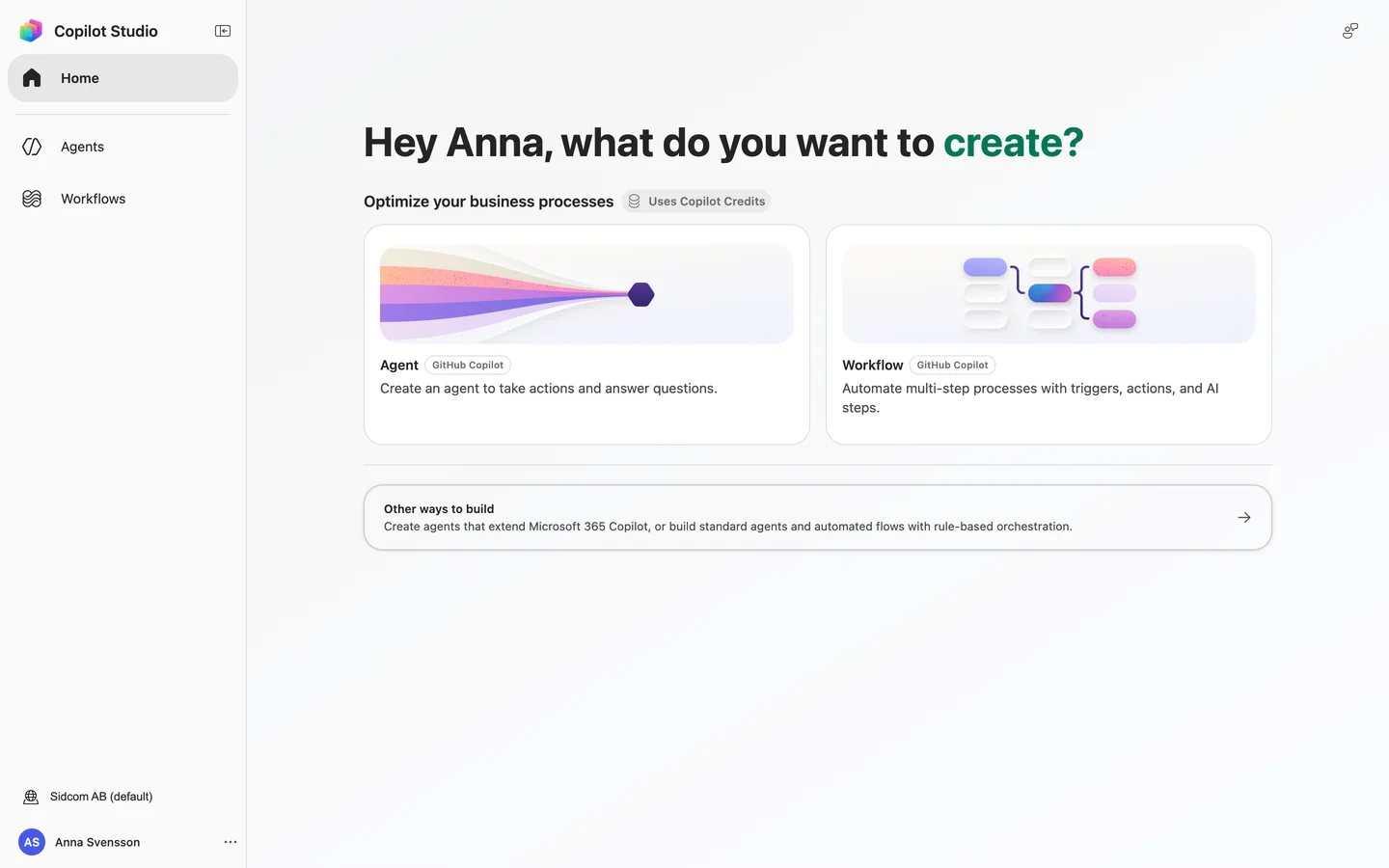
Copilot Studio first suggests an agent labelled GitHub Copilot, and that is where Microsoft is putting most of its effort. With Fortnox it works less well today: it uses Copilot Credits for all use, even for users with a Microsoft 365 Copilot licence, and asks permission every time a new Fortnox tool is used. The standard agent is included with the licence and answers straight away. When the new kind works as well, we will update the guide.
Done
Fortnox is added to the agent. Next, connect your Fortnox company.
Step 1 of 19
Click Other ways to build
At the bottom of the Copilot Studio home page. Do not pick Agent at the top: it is labelled GitHub Copilot, uses Copilot Credits and asks permission for every Fortnox tool.
ClickOther ways to build
Open Copilot Studiocopilotstudio.microsoft.com(opens in a new tab)Stuck on this step?
Contact support about this step →Looks different on your screen?
Still stuck? Tell us which step and we will help you through it.
Step 2 of 19
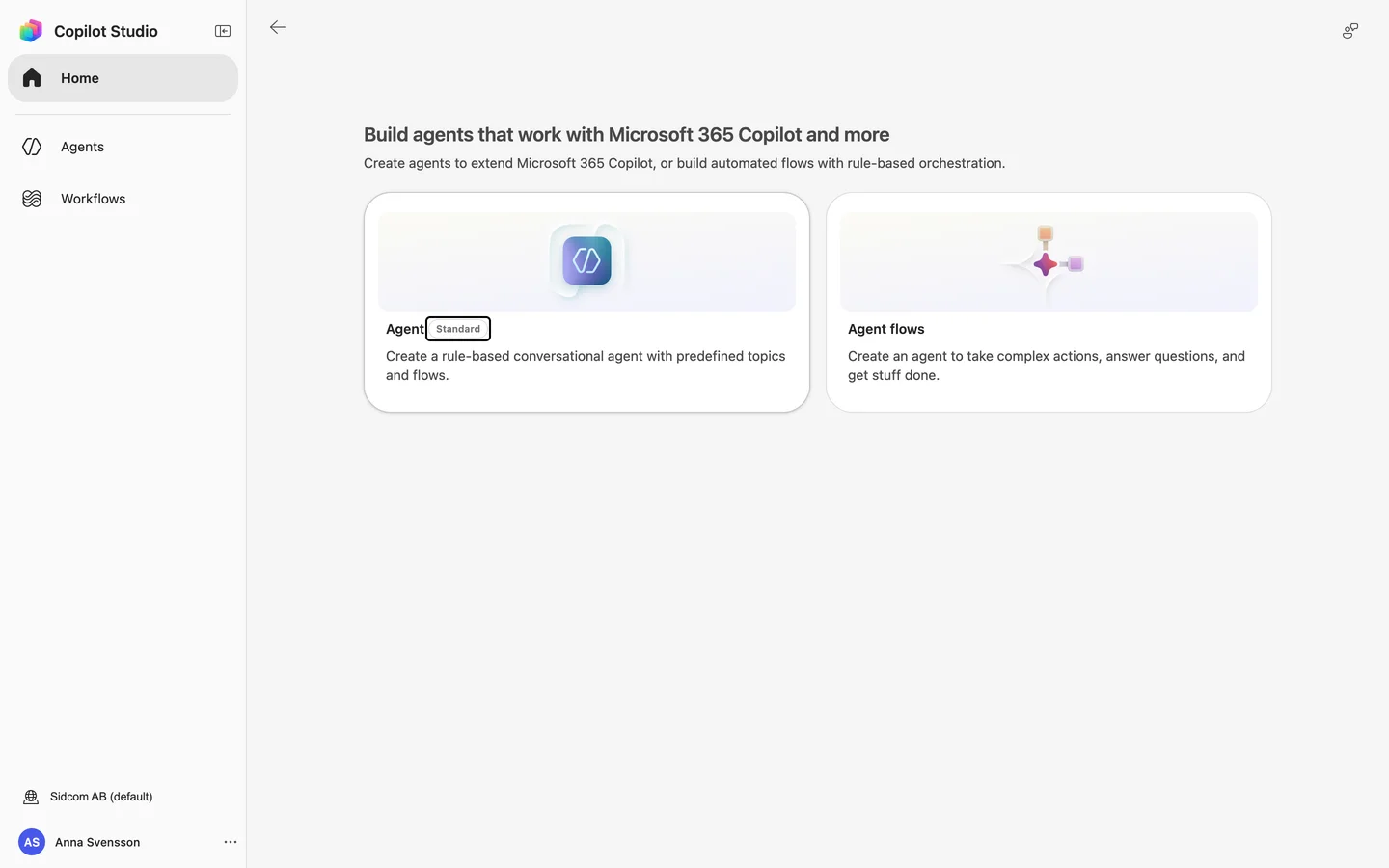
Choose Agent, labelled Standard
The standard agent is included with a Microsoft 365 Copilot licence and answers without asking permission for every tool.
ClickAgent
Stuck on this step?
Contact support about this step →Looks different on your screen?
Still stuck? Tell us which step and we will help you through it.
Step 3 of 19
Name the agent
Everyone using the agent in Copilot and Teams sees the name.
Fortnox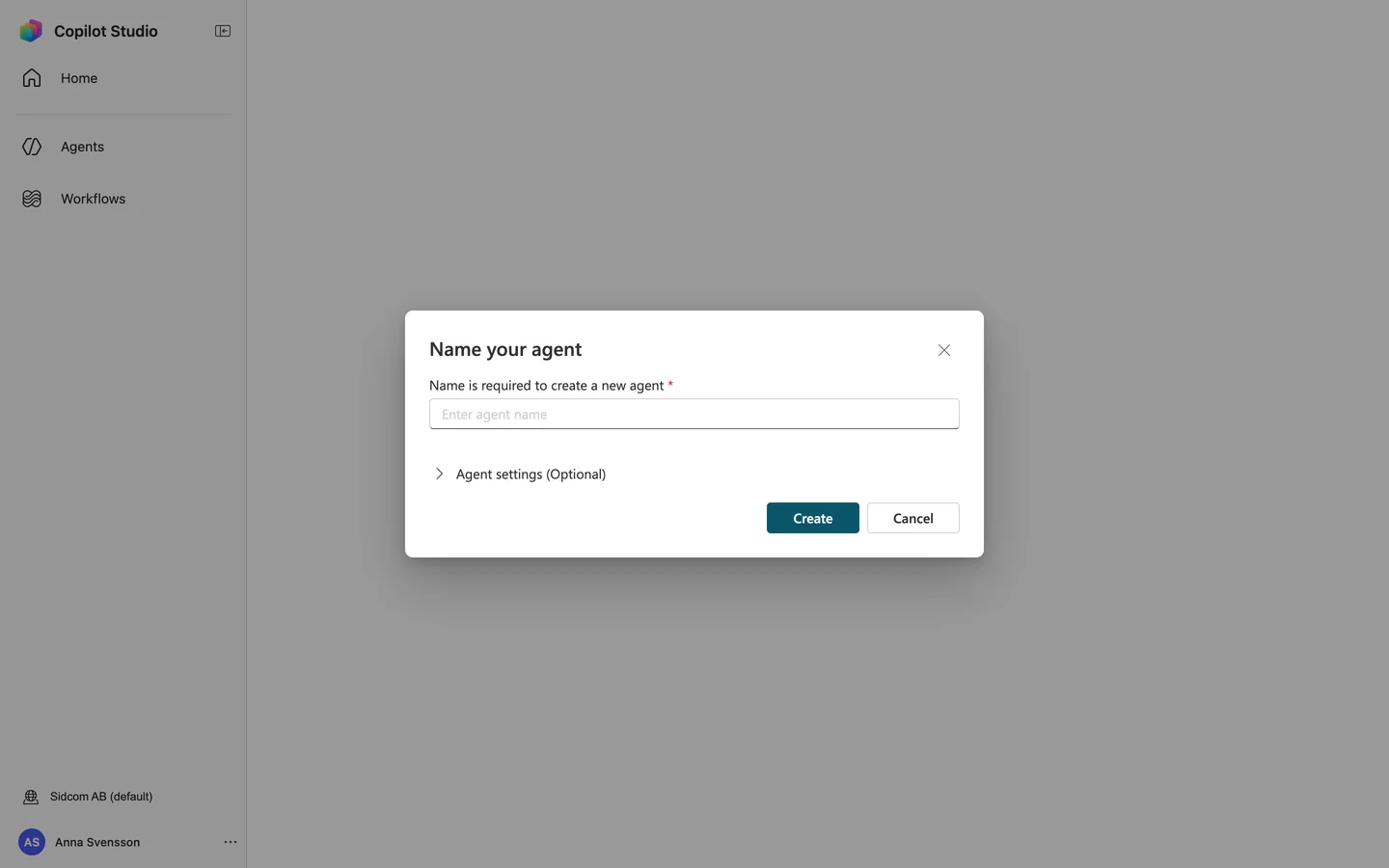
Stuck on this step?
The name is not accepted
There is already an agent with that name in the environment. Pick another name, for example Fortnox finance.
Contact support about this step →Looks different on your screen?
Still stuck? Tell us which step and we will help you through it.
Step 4 of 19
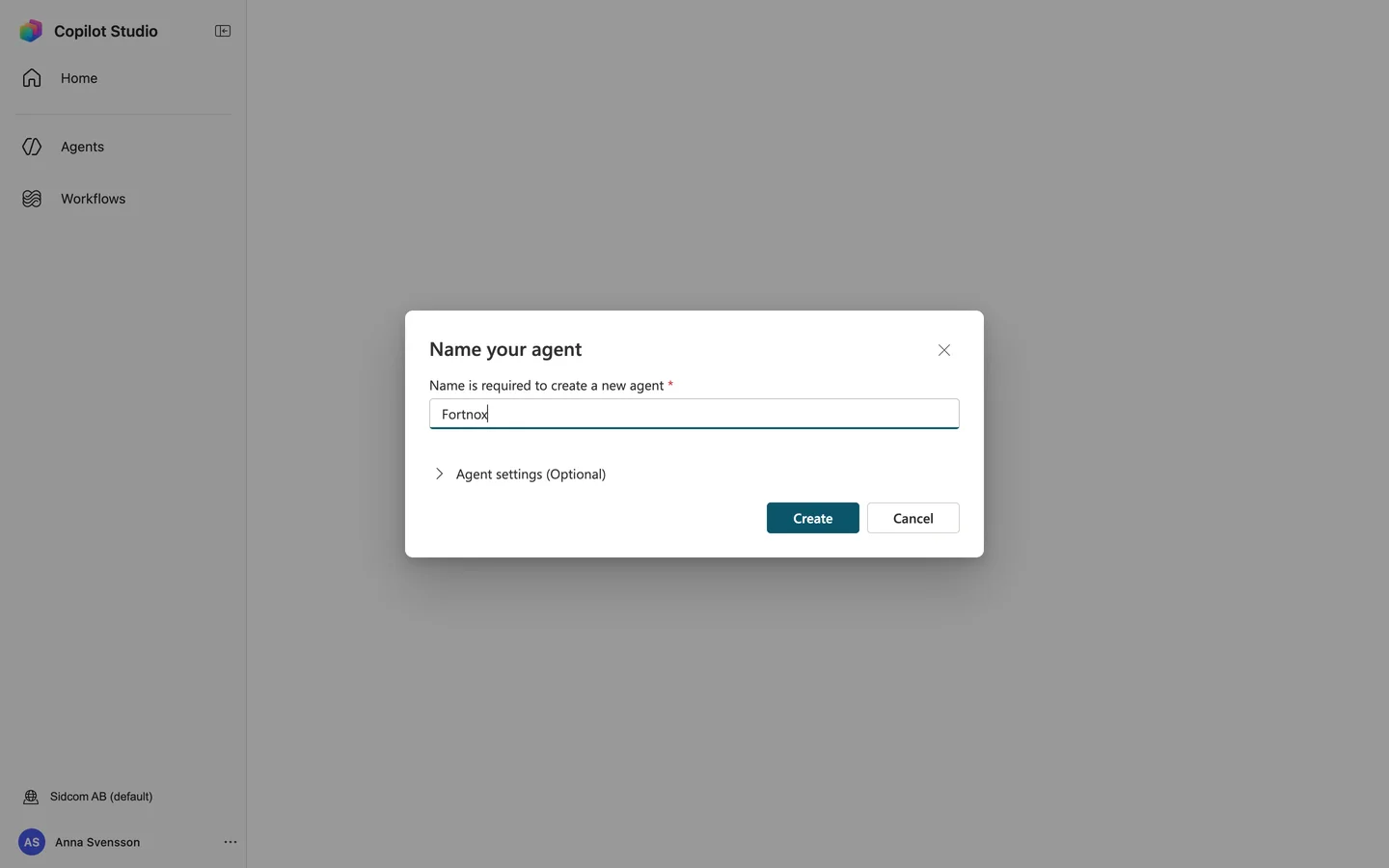
Open Agent settings
This is where you choose the language.
ClickAgent settings (Optional)
Stuck on this step?
Contact support about this step →Looks different on your screen?
Still stuck? Tell us which step and we will help you through it.
Step 5 of 19
Click Language
ClickLanguage
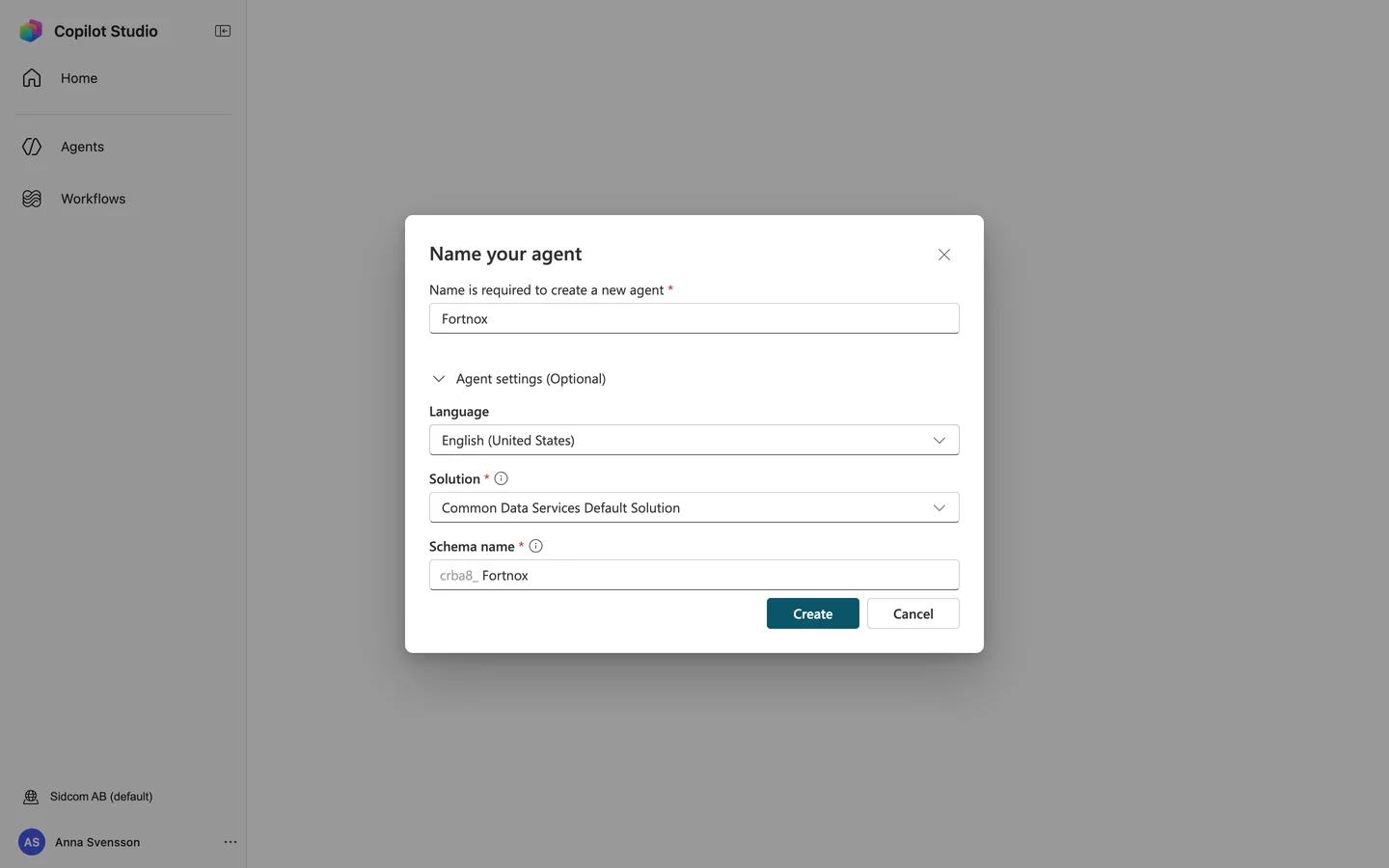
Stuck on this step?
Contact support about this step →Looks different on your screen?
Still stuck? Tell us which step and we will help you through it.
Step 6 of 19
Choose your language
The agent, and Copilot’s messages around it, then use that language. The pictures show Swedish (sv-SE).
ClickSwedish (sv-SE)
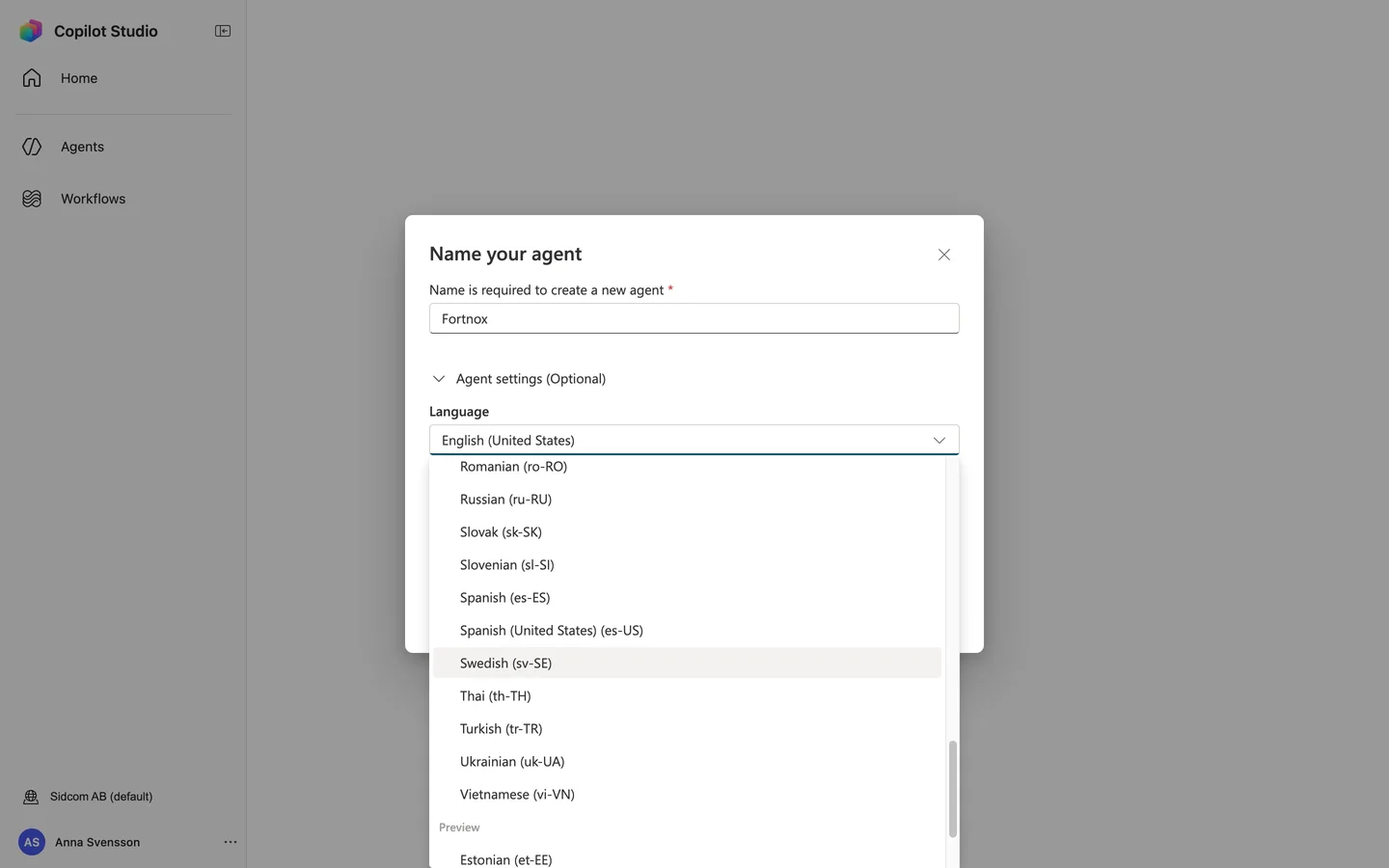
Stuck on this step?
Contact support about this step →Looks different on your screen?
Still stuck? Tell us which step and we will help you through it.
Step 7 of 19
Click Create
It takes a moment for the agent to be ready.
ClickCreate
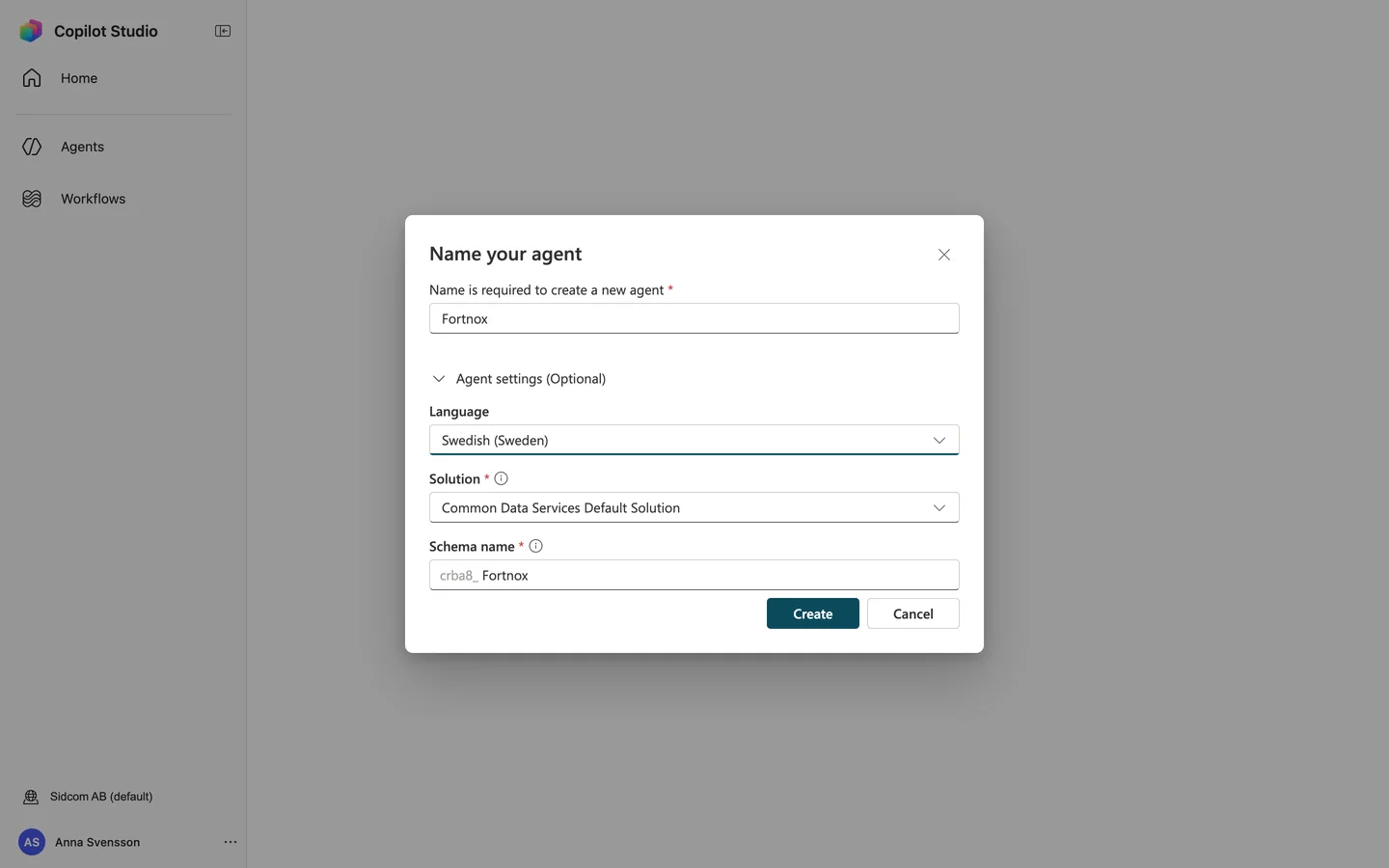
Stuck on this step?
Contact support about this step →Looks different on your screen?
Still stuck? Tell us which step and we will help you through it.
Step 8 of 19
Click Edit next to Instructions
ClickEdit
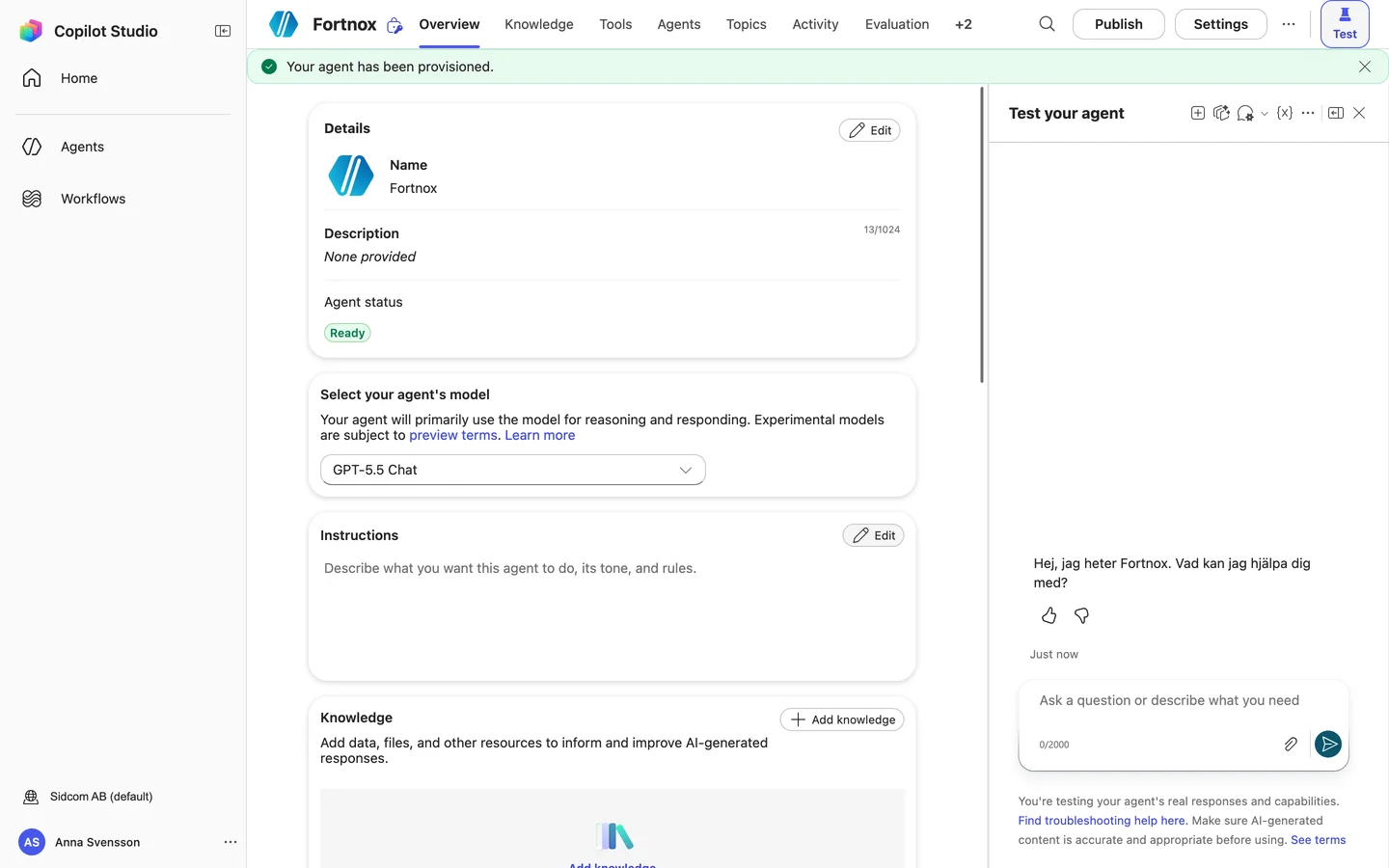
Stuck on this step?
Contact support about this step →Looks different on your screen?
Still stuck? Tell us which step and we will help you through it.
Step 9 of 19
Paste the instructions
The instructions shape how the agent answers. You can change them any time.
InstructionsYou help the user with bookkeeping and finance in Fortnox. Use the Fortnox tools to look up and create records. Always ask before you create, change or delete anything. Answer briefly and clearly.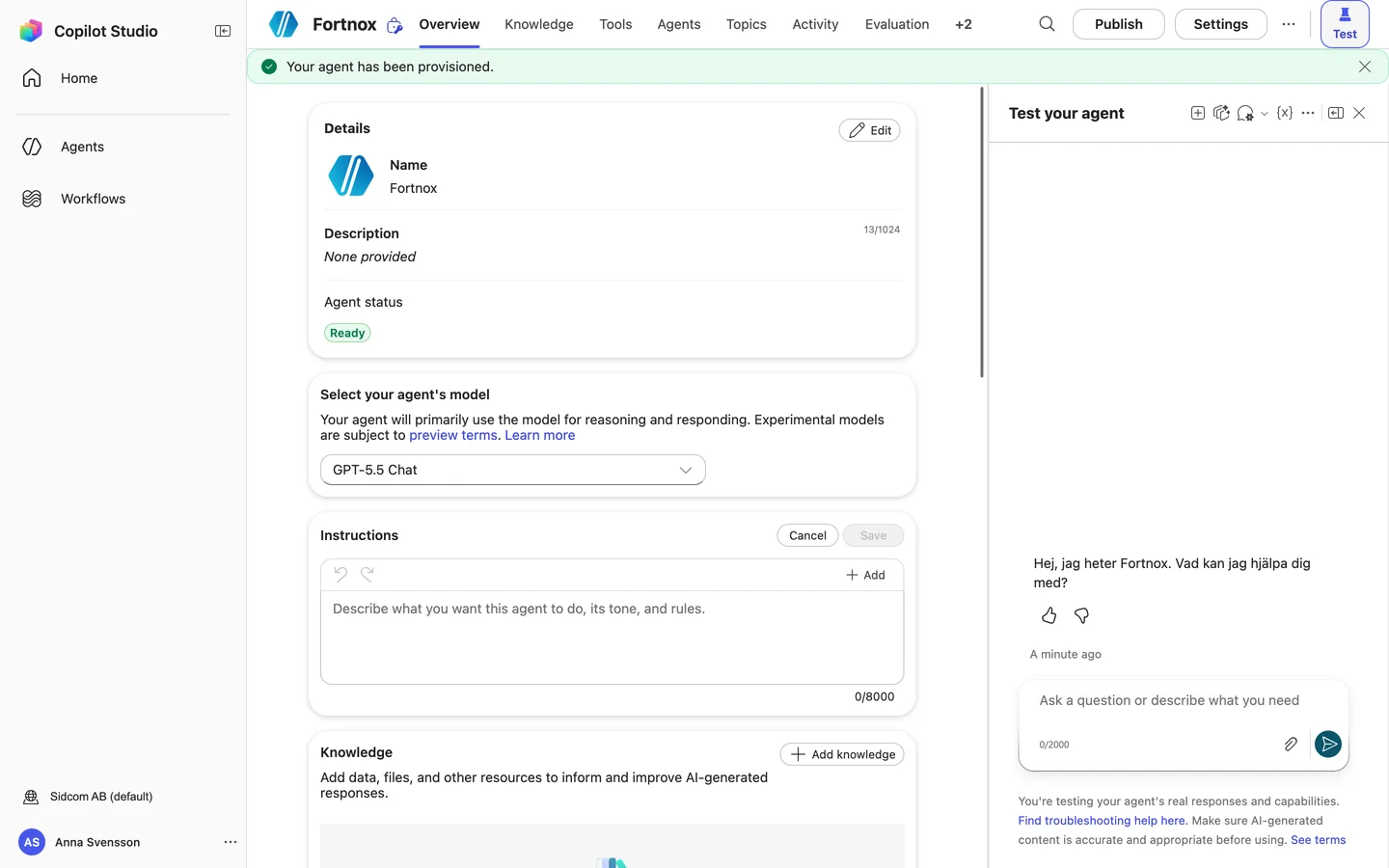
Stuck on this step?
Contact support about this step →Looks different on your screen?
Still stuck? Tell us which step and we will help you through it.
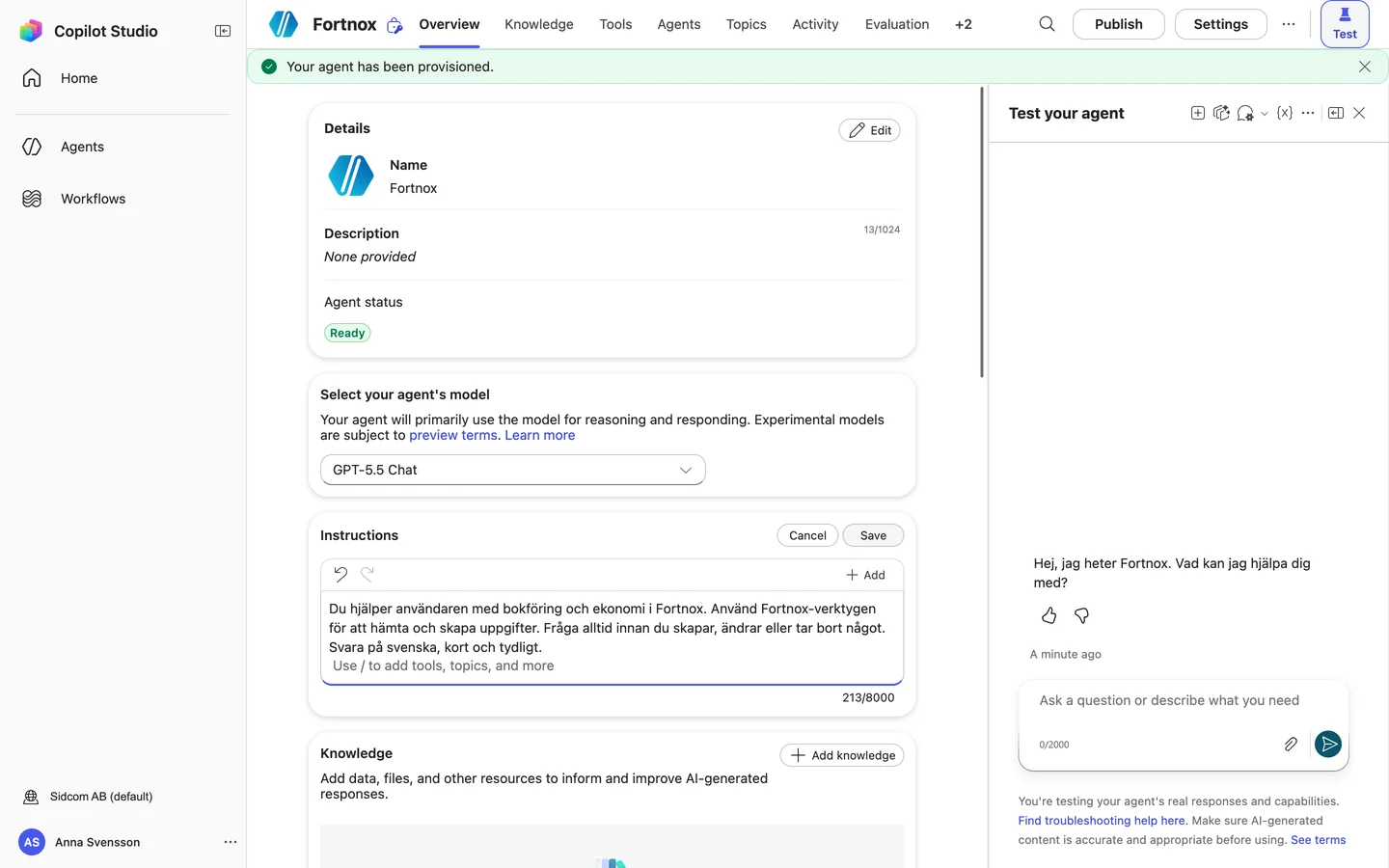
Step 10 of 19
Click Save
ClickSave
Stuck on this step?
Contact support about this step →Looks different on your screen?
Still stuck? Tell us which step and we will help you through it.
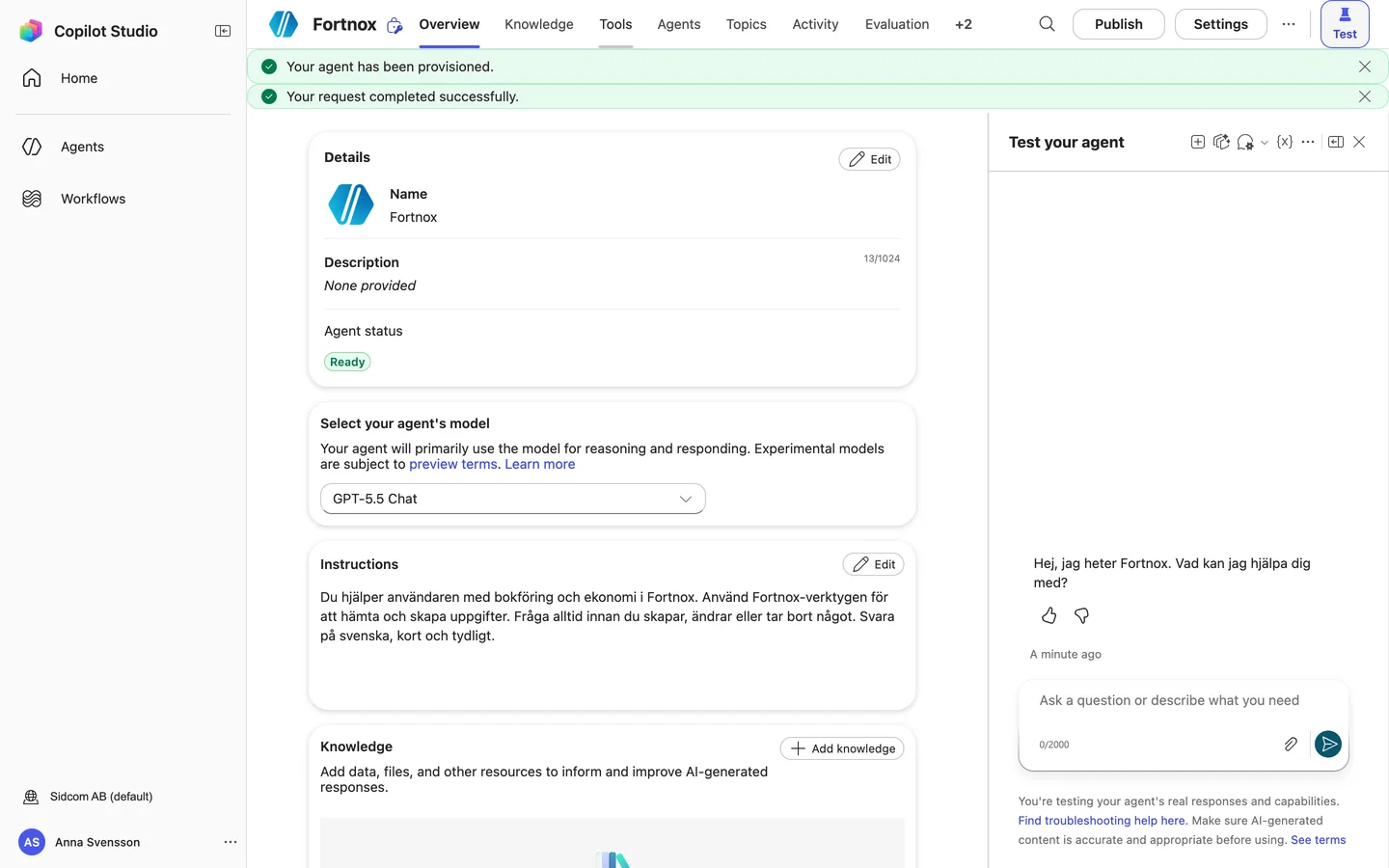
Step 11 of 19
Open the Tools tab
ClickTools
Stuck on this step?
Contact support about this step →Looks different on your screen?
Still stuck? Tell us which step and we will help you through it.
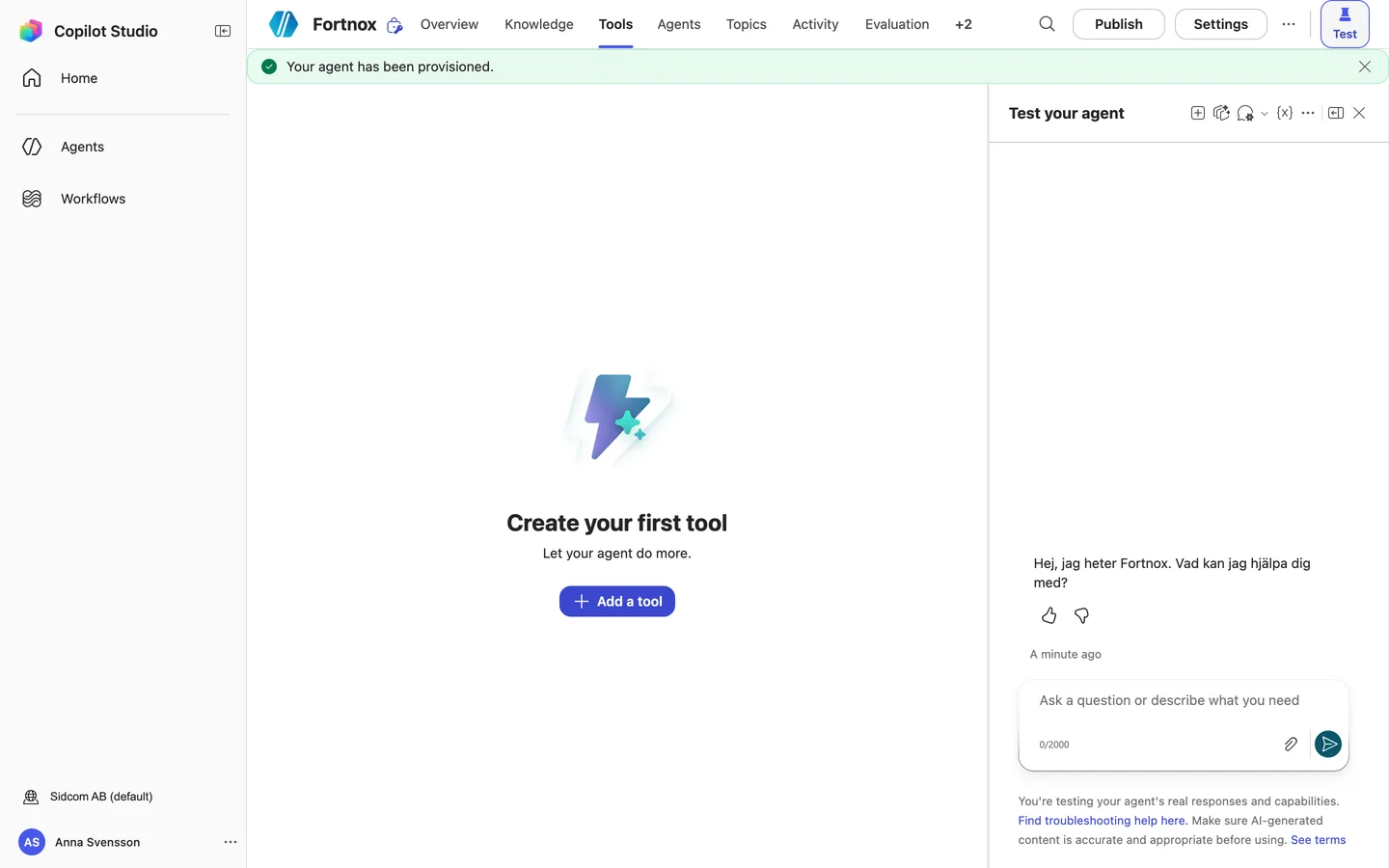
Step 12 of 19
Click Add a tool
ClickAdd a tool
Stuck on this step?
Contact support about this step →Looks different on your screen?
Still stuck? Tell us which step and we will help you through it.
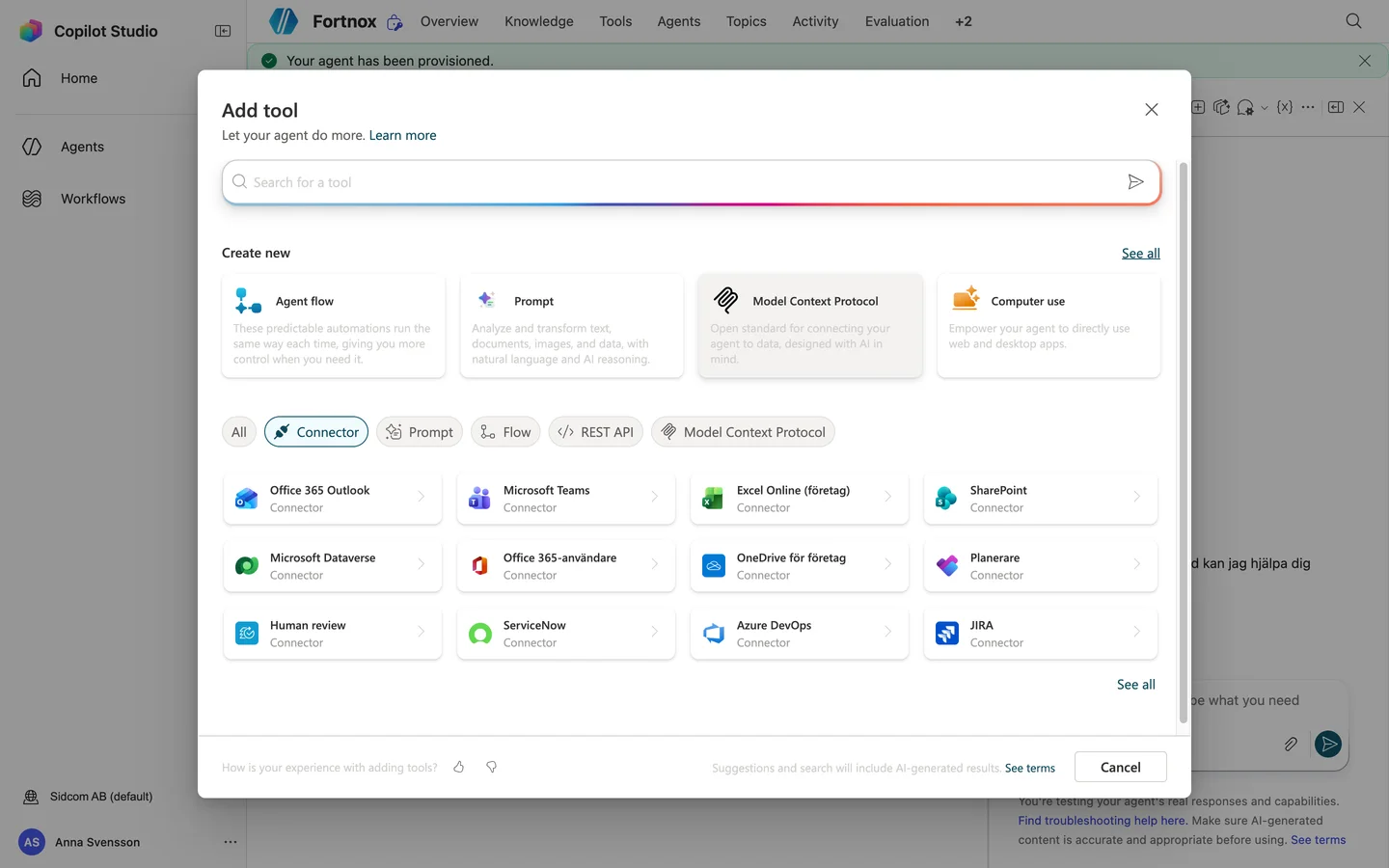
Step 13 of 19
Choose Model Context Protocol
Under Create new, not the filter button further down.
ClickModel Context Protocol
Stuck on this step?
Contact support about this step →Looks different on your screen?
Still stuck? Tell us which step and we will help you through it.
Step 14 of 19
Name the server
Use only letters, numbers and spaces.
Type inServer name
Fortnox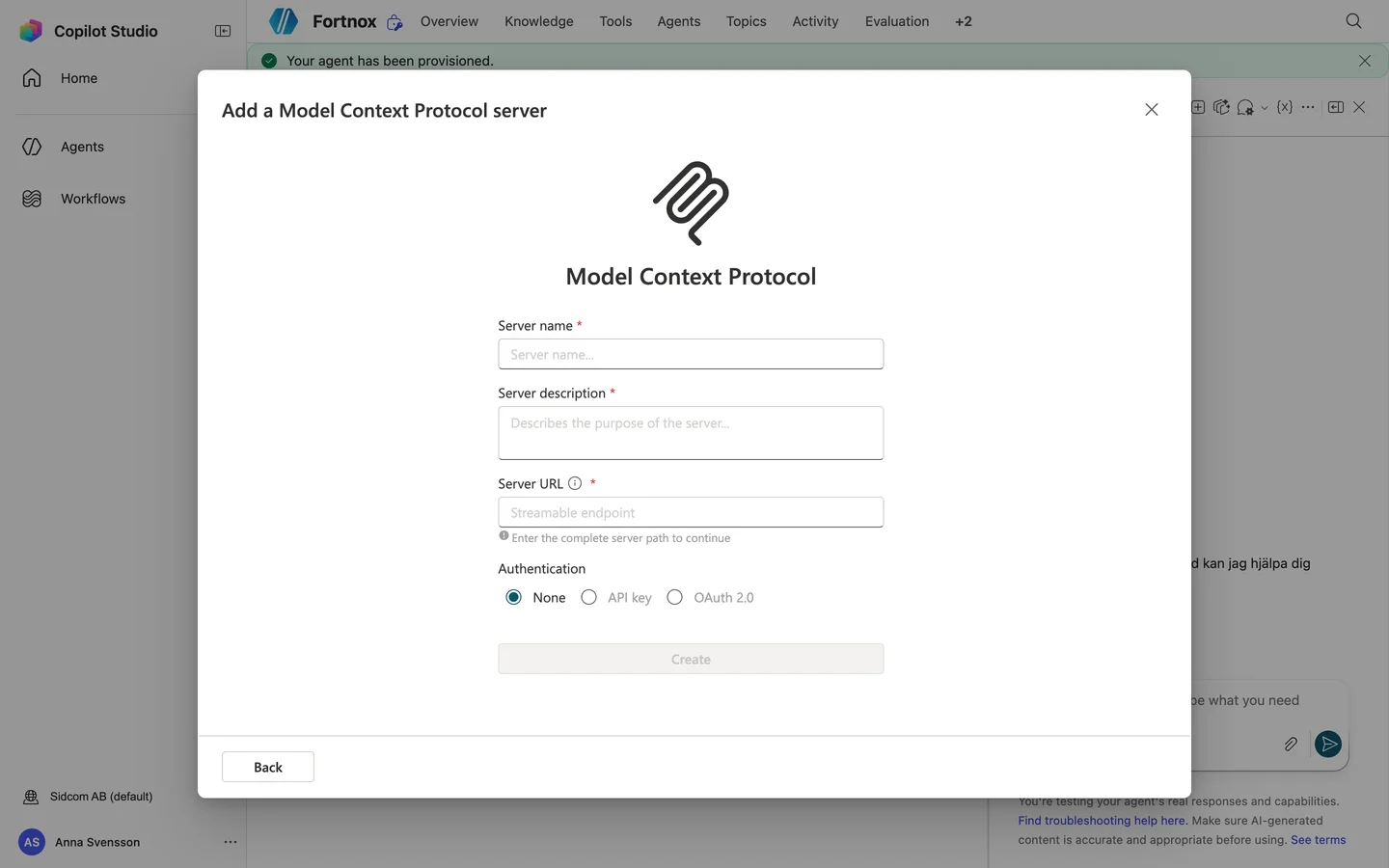
Stuck on this step?
Contact support about this step →Looks different on your screen?
Still stuck? Tell us which step and we will help you through it.
Step 15 of 19
Add a description
The agent uses it to know when to ask Fortnox.
Type inServer description
Bookkeeping, invoices, customers, suppliers and reports in Fortnox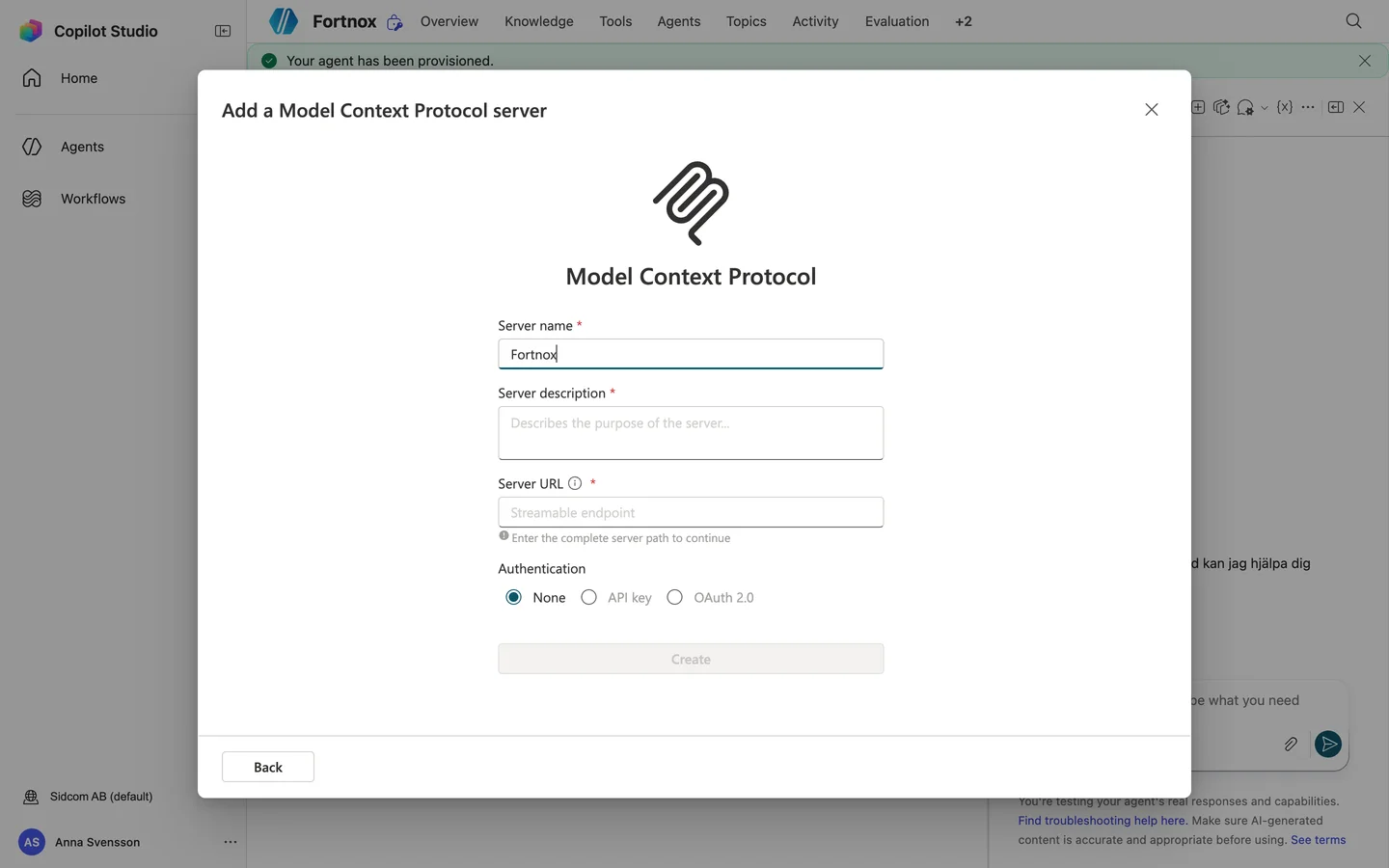
Stuck on this step?
Contact support about this step →Looks different on your screen?
Still stuck? Tell us which step and we will help you through it.
Step 16 of 19
Paste the server address
Type inServer URL
MCP server addresshttps://fortnox-copilot.sidcom.ai/mcp
Stuck on this step?
Contact support about this step →Looks different on your screen?
Still stuck? Tell us which step and we will help you through it.
Step 17 of 19
Choose OAuth 2.0
That way everyone signs in with their own Fortnox account.
ClickOAuth 2.0
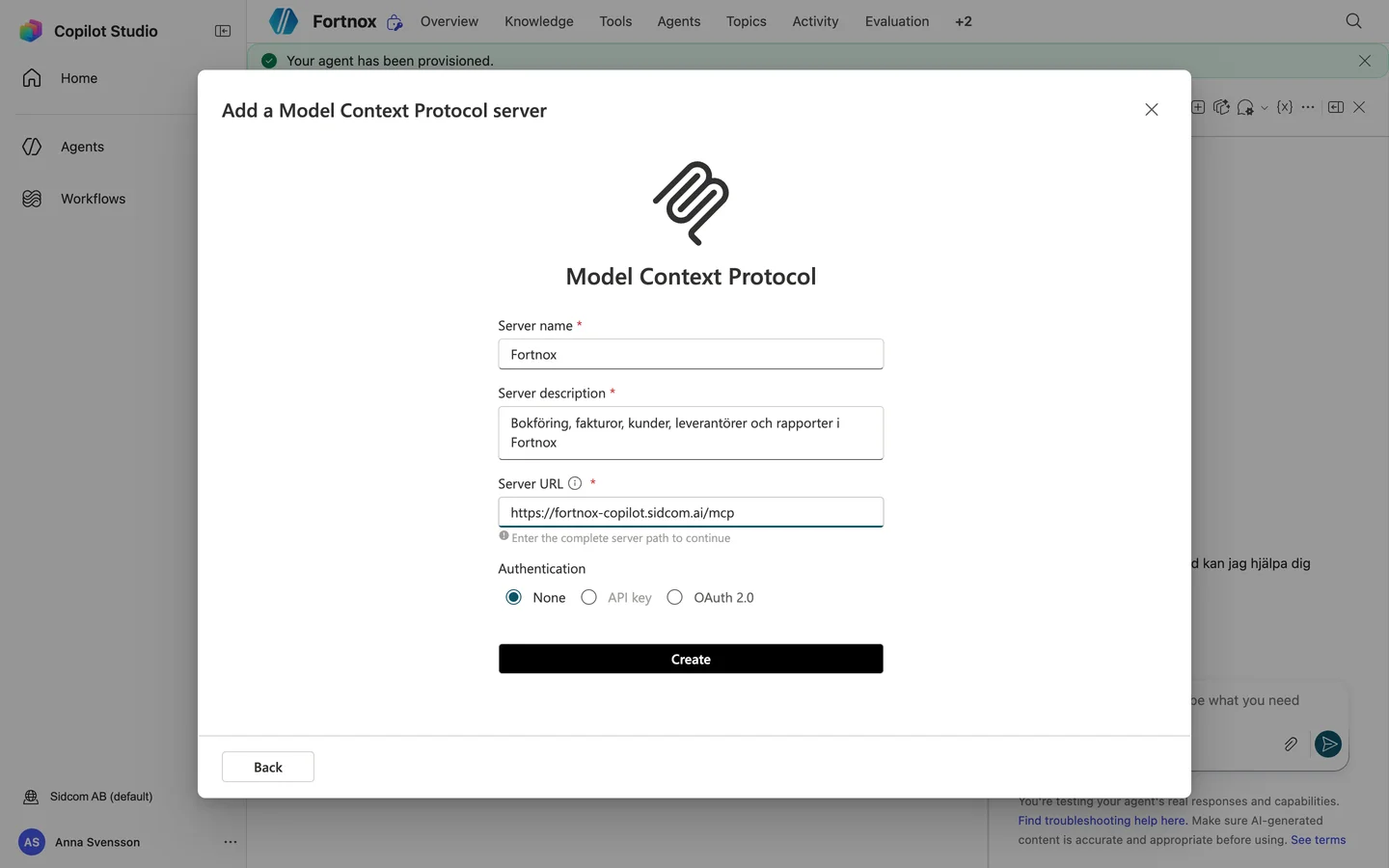
Stuck on this step?
Contact support about this step →Looks different on your screen?
Still stuck? Tell us which step and we will help you through it.
Step 18 of 19
Leave Dynamic discovery selected
Copilot Studio then registers with Sidcom by itself. Nothing more to fill in.
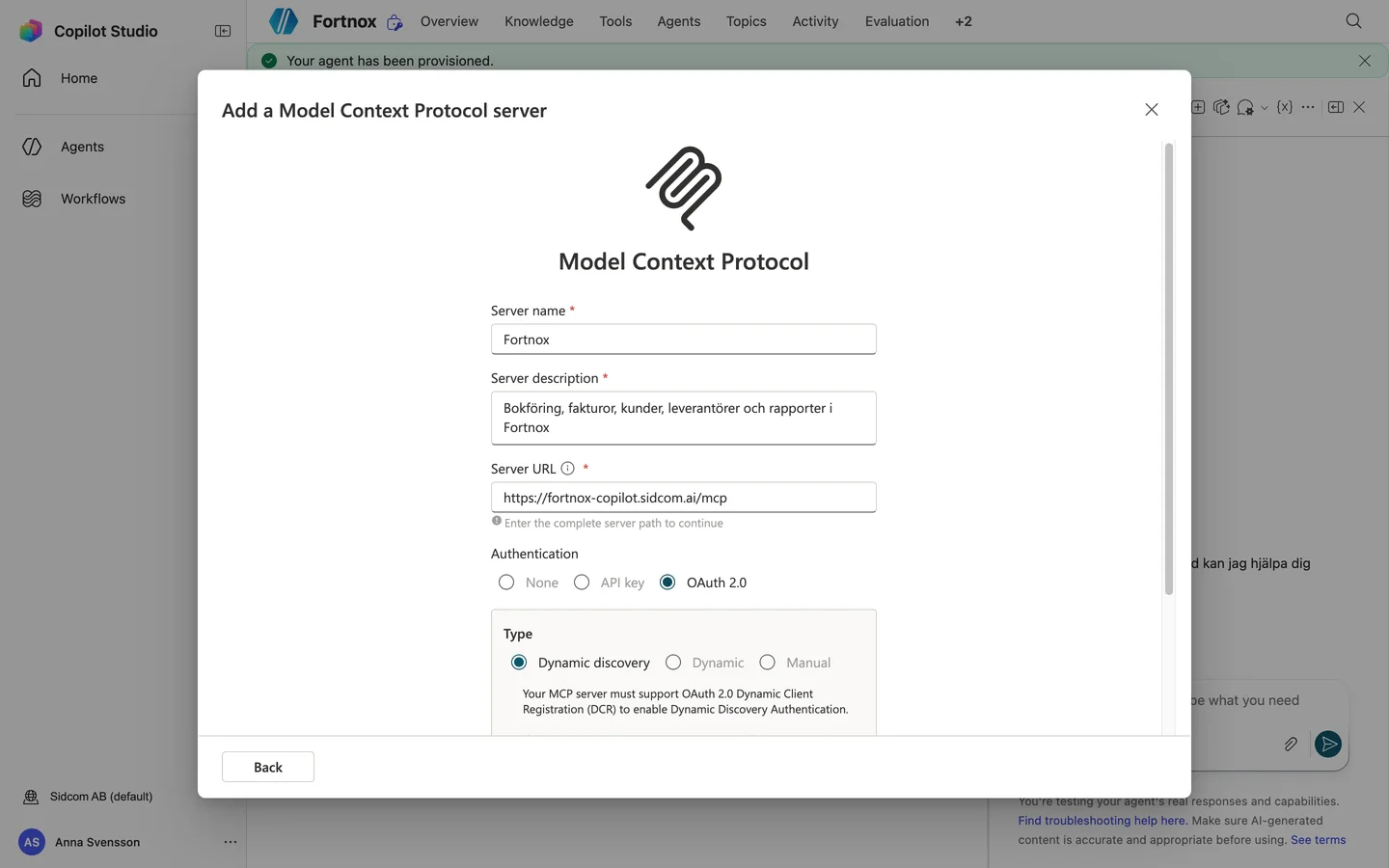
Stuck on this step?
Contact support about this step →Looks different on your screen?
Still stuck? Tell us which step and we will help you through it.
Step 19 of 19
Click Create
Copilot Studio checks the server, which takes a few seconds.
ClickCreate
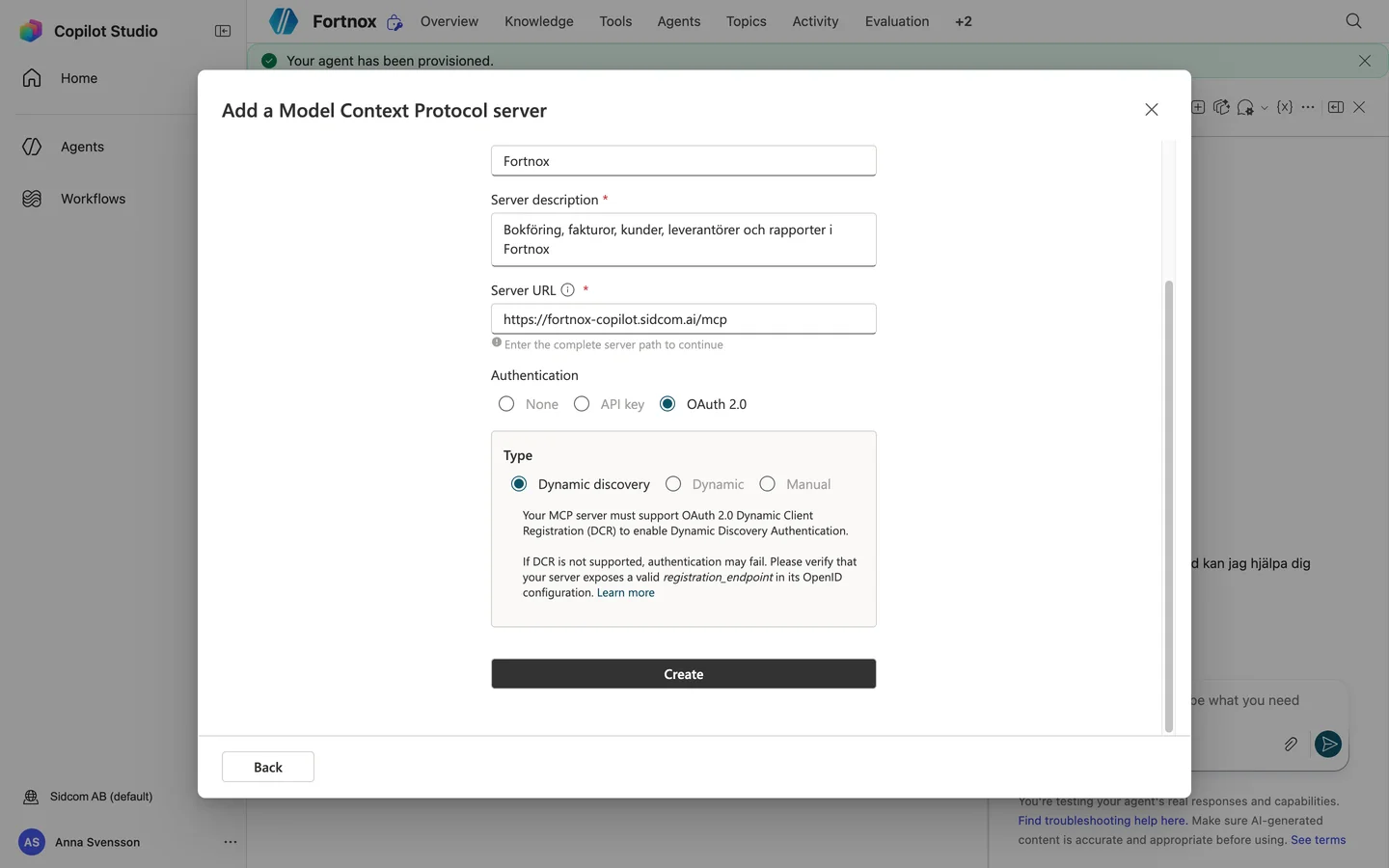
Stuck on this step?
The server cannot be created
Usually the name. Brackets and other special characters are rejected, and a name recently used by a removed connector is blocked for a while. Rename it, for example to Fortnox Sidcom. Also check that Authentication is OAuth 2.0, not None.
Contact support about this step →Looks different on your screen?
Still stuck? Tell us which step and we will help you through it.
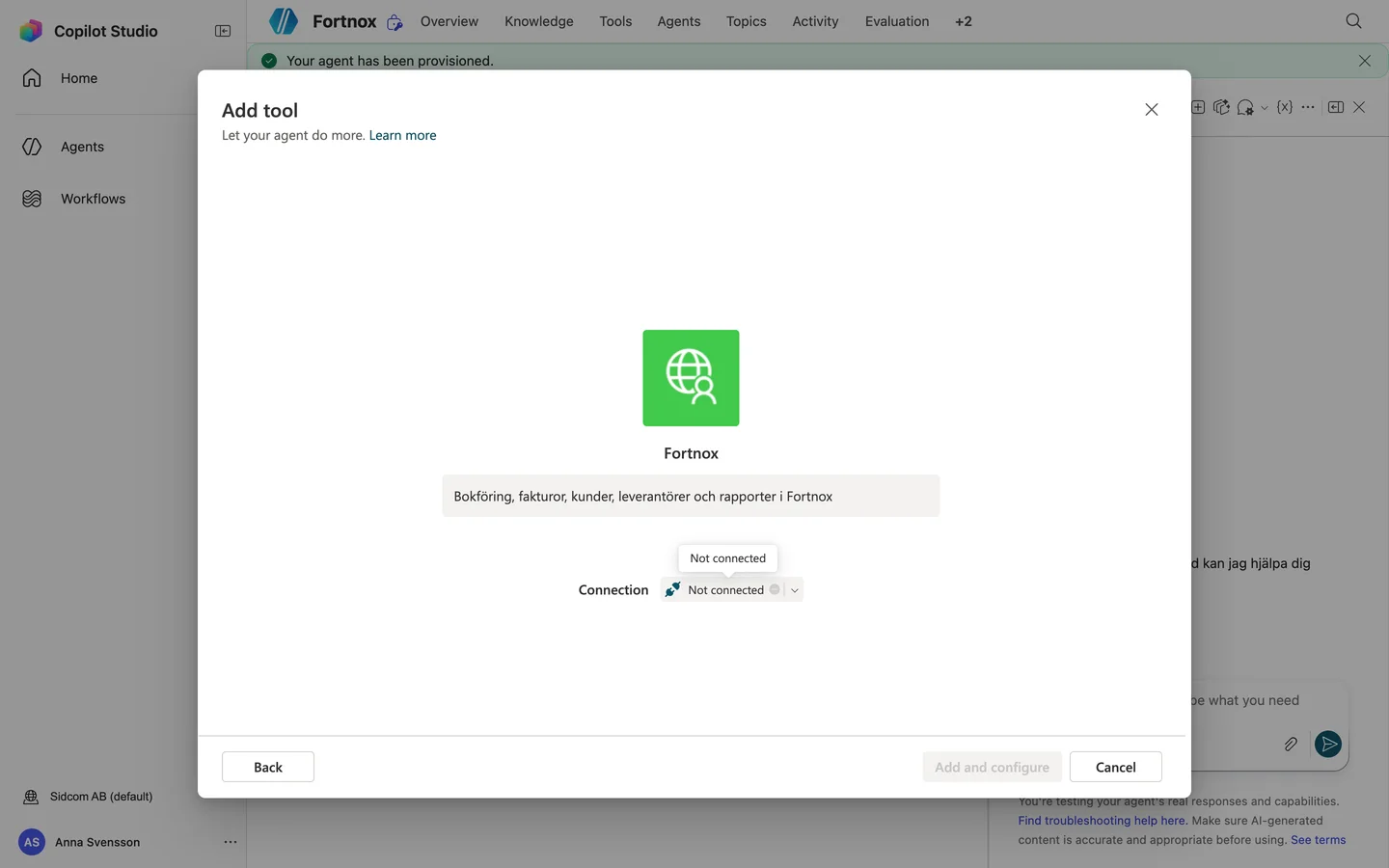
Done
Fortnox is connected to the agent. Next, test and publish it.
Step 1 of 16
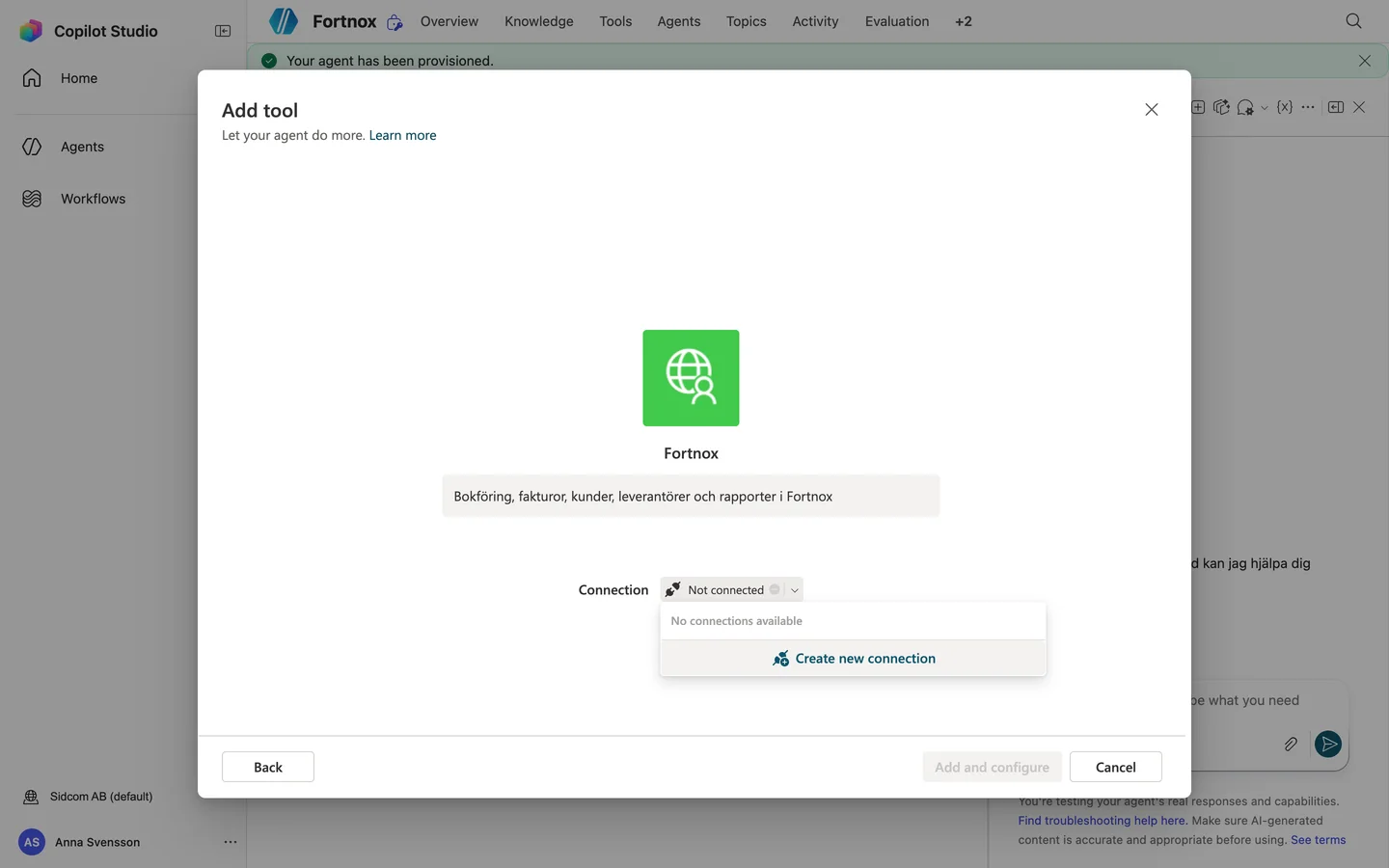
Open Connection
The tool needs a connection to your Fortnox.
ClickNot connected
Stuck on this step?
Contact support about this step →Looks different on your screen?
Still stuck? Tell us which step and we will help you through it.
Step 2 of 16
Choose Create new connection
ClickCreate new connection
Stuck on this step?
Contact support about this step →Looks different on your screen?
Still stuck? Tell us which step and we will help you through it.
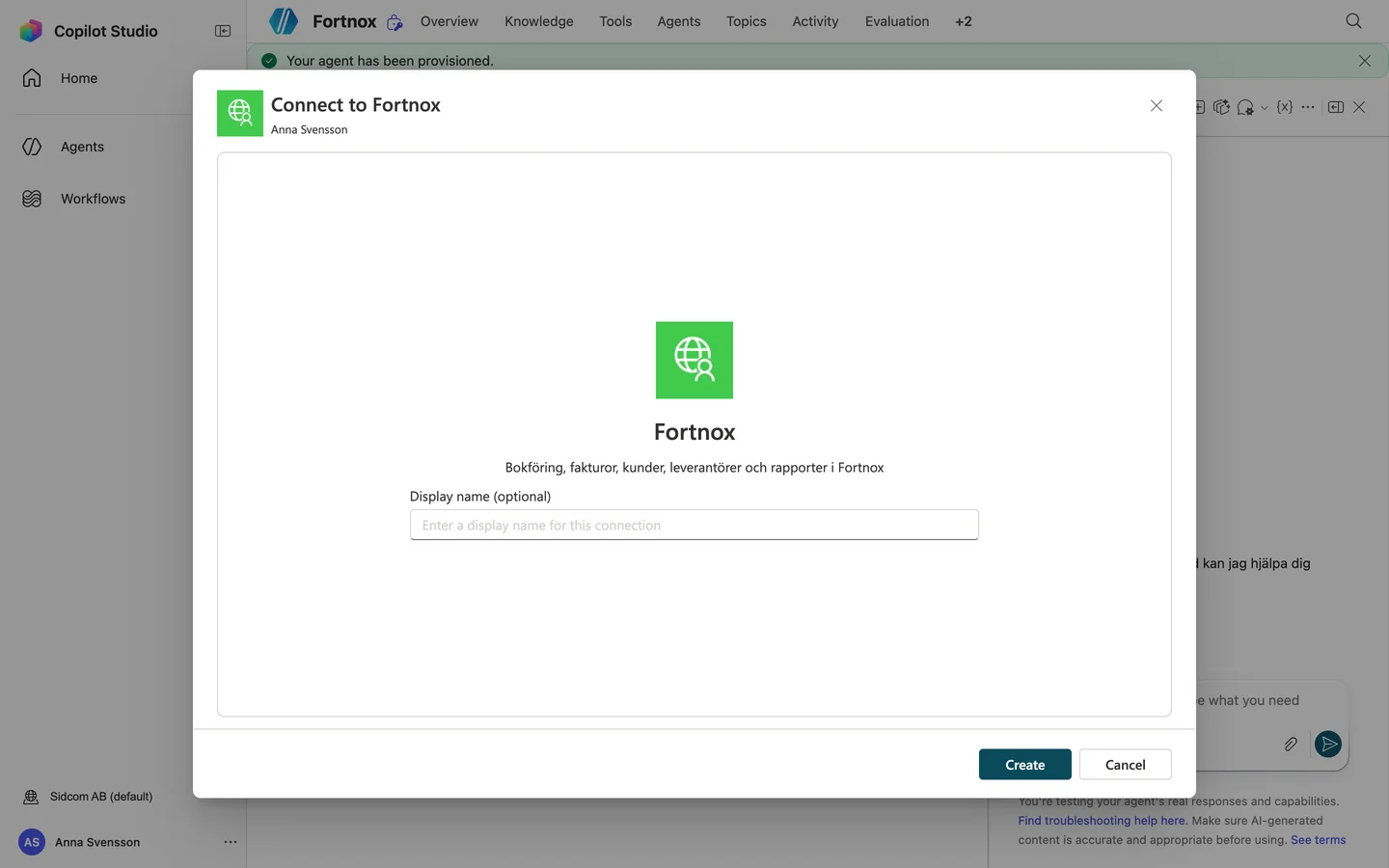
Step 3 of 16
Click Create
A sign in window opens. Allow pop ups if the browser asks.
ClickCreate
Stuck on this step?
It says sign in failed, or the window disappeared
The sign in window closed before you finished, usually because it took more than a few minutes. Click Create again and go through the sign in in one go. Once your Sidcom account exists it is quicker the second time.
Contact support about this step →Looks different on your screen?
Still stuck? Tell us which step and we will help you through it.
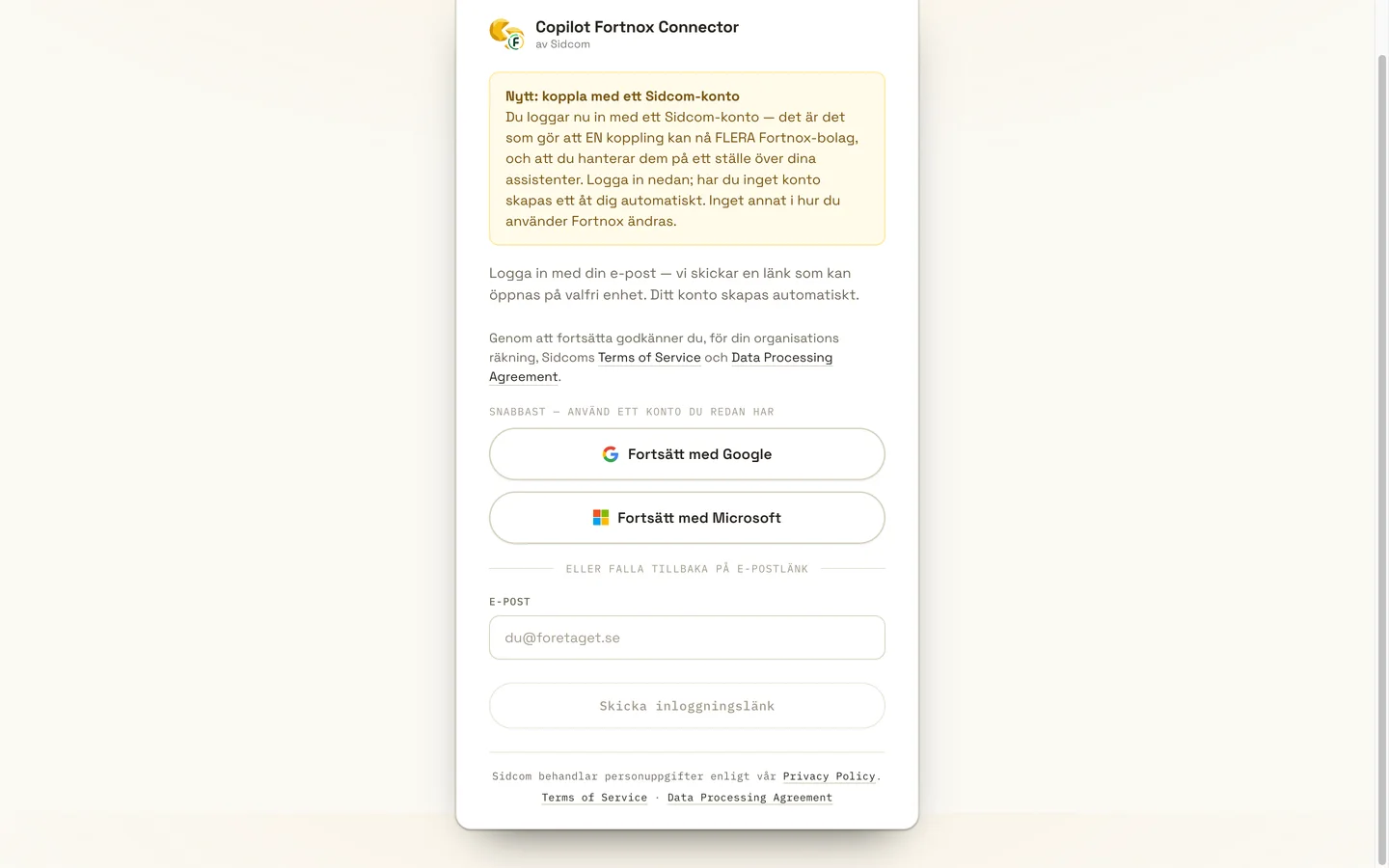
Step 4 of 16
Sign in with a Sidcom account
Choose Fortsätt med Microsoft (continue with Microsoft) and use your work account. If you do not have an account, one is created for you.
ClickFortsätt med Microsoft
One Sidcom account can reach several Fortnox companies, across your AI assistants.
Stuck on this step?
Contact support about this step →Looks different on your screen?
Still stuck? Tell us which step and we will help you through it.
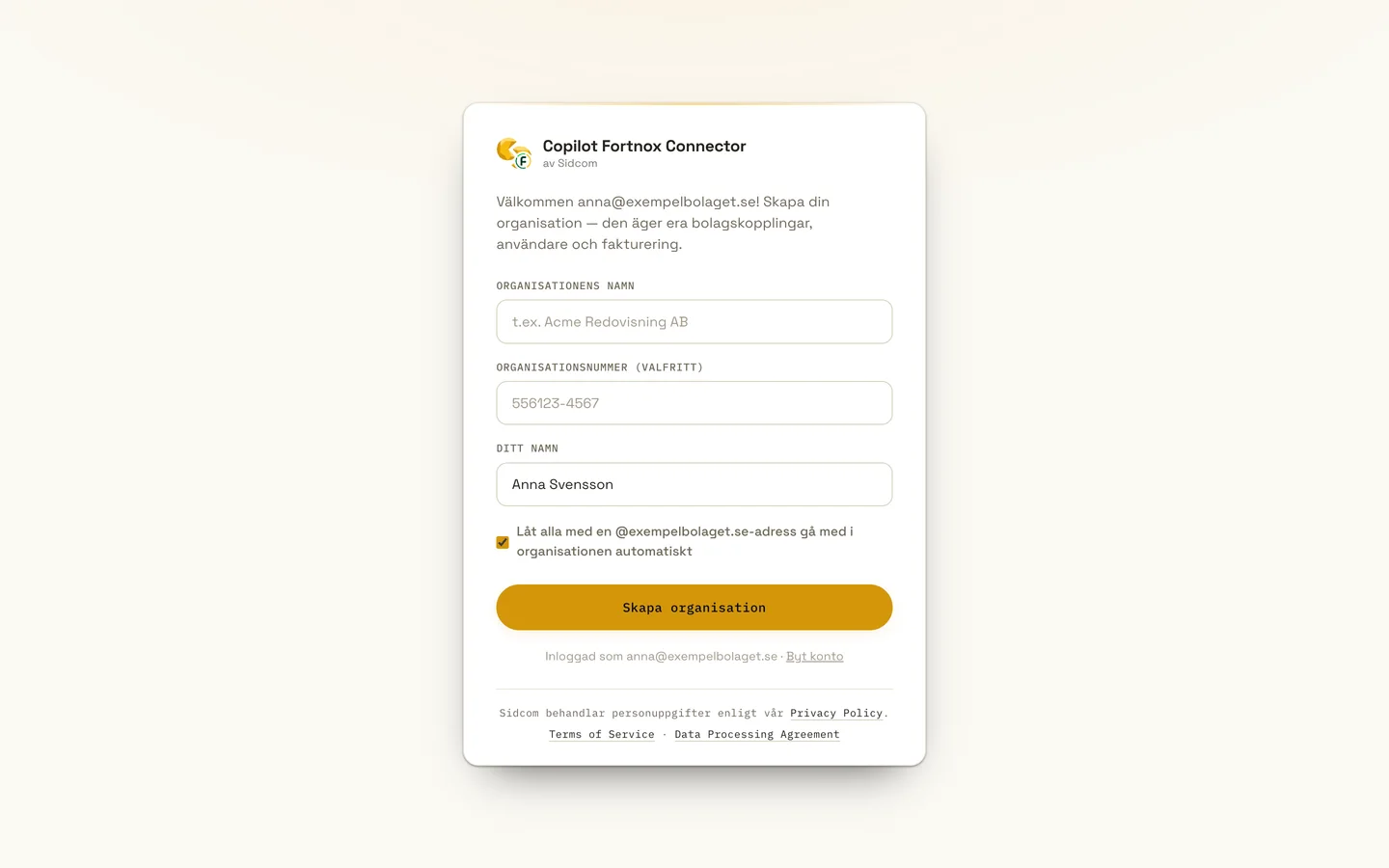
Step 5 of 16
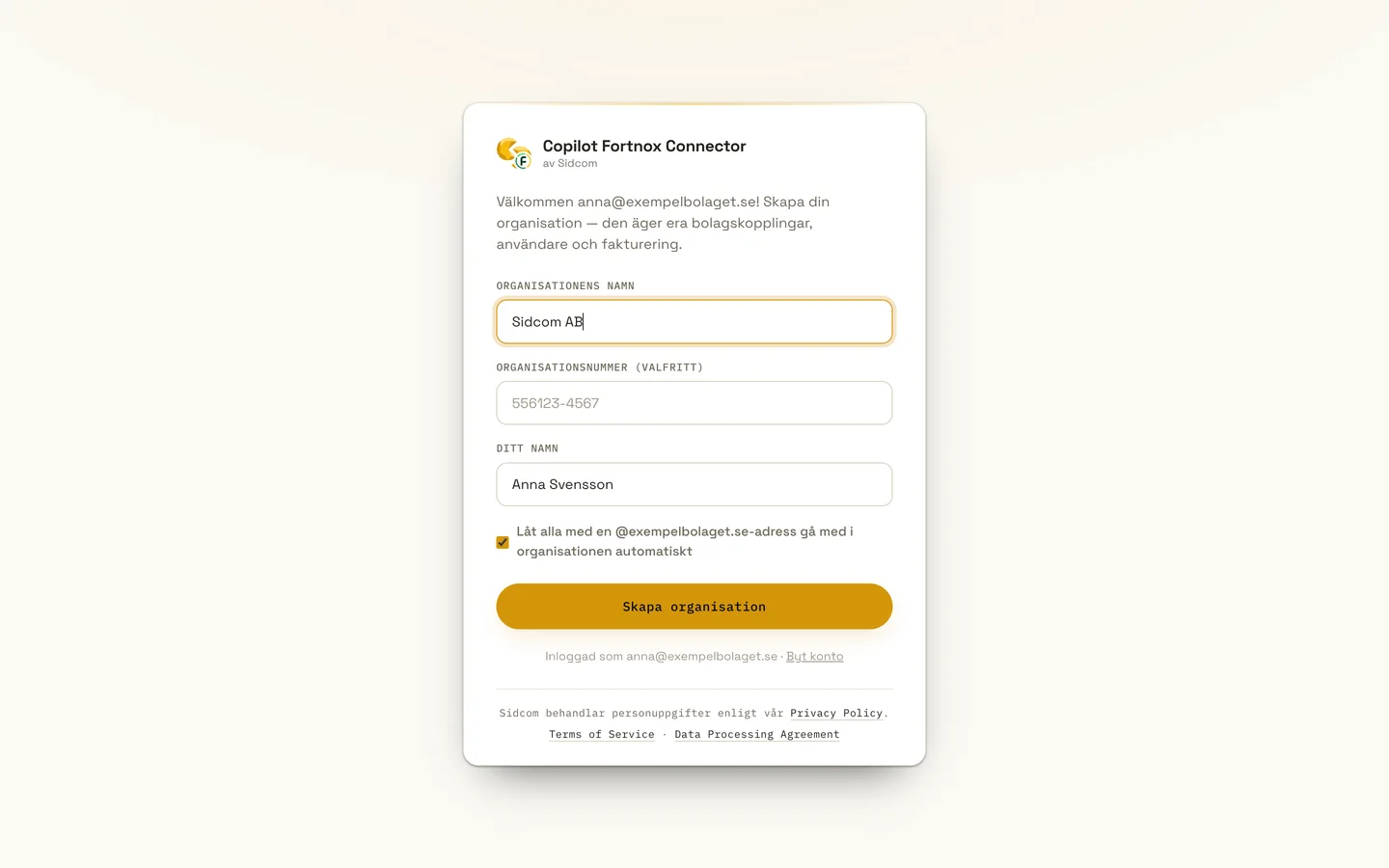
Create your organisation
The first time, you create an organisation at Sidcom, usually named after your company. Colleagues with the same email domain can join automatically.
Type inOrganisationens namn
Sidcom ABAlready have a Sidcom account? Then this step is skipped.
Stuck on this step?
Contact support about this step →Looks different on your screen?
Still stuck? Tell us which step and we will help you through it.
Step 6 of 16
Click Skapa organisation (create organisation)
ClickSkapa organisation
Stuck on this step?
Contact support about this step →Looks different on your screen?
Still stuck? Tell us which step and we will help you through it.
Step 7 of 16
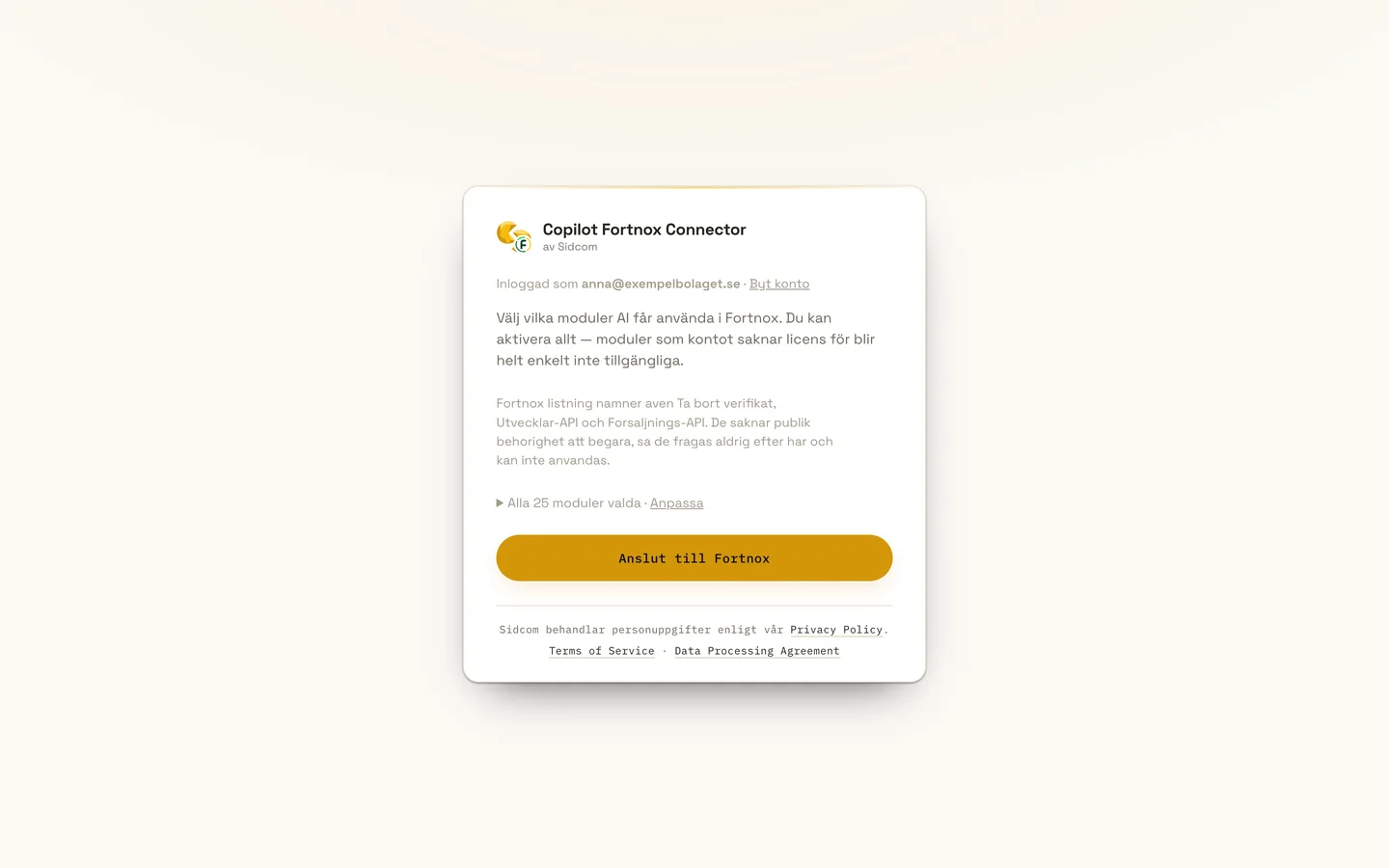
Choose modules and connect
Pick which parts of Fortnox the agent may use. Leave them all on if you are unsure, modules the company has no licence for simply stay unavailable.
ClickAnslut till Fortnox
Stuck on this step?
Contact support about this step →Looks different on your screen?
Still stuck? Tell us which step and we will help you through it.
Step 8 of 16
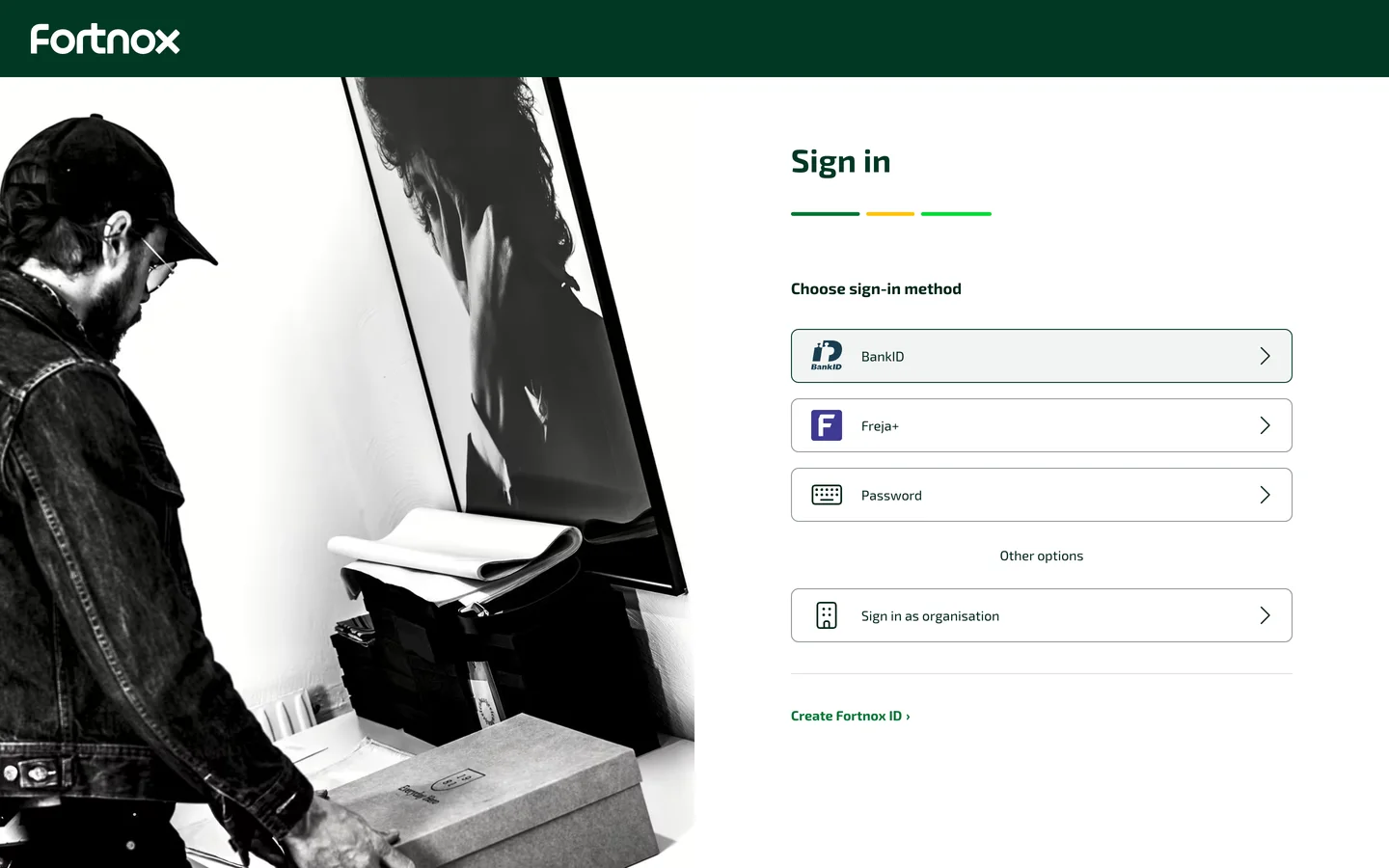
Sign in to Fortnox
Fortnox opens. Sign in the way you usually do, for example with BankID.
ClickBankID
Already signed in to Fortnox? Then this step is skipped.
Stuck on this step?
Contact support about this step →Looks different on your screen?
Still stuck? Tell us which step and we will help you through it.
Step 9 of 16
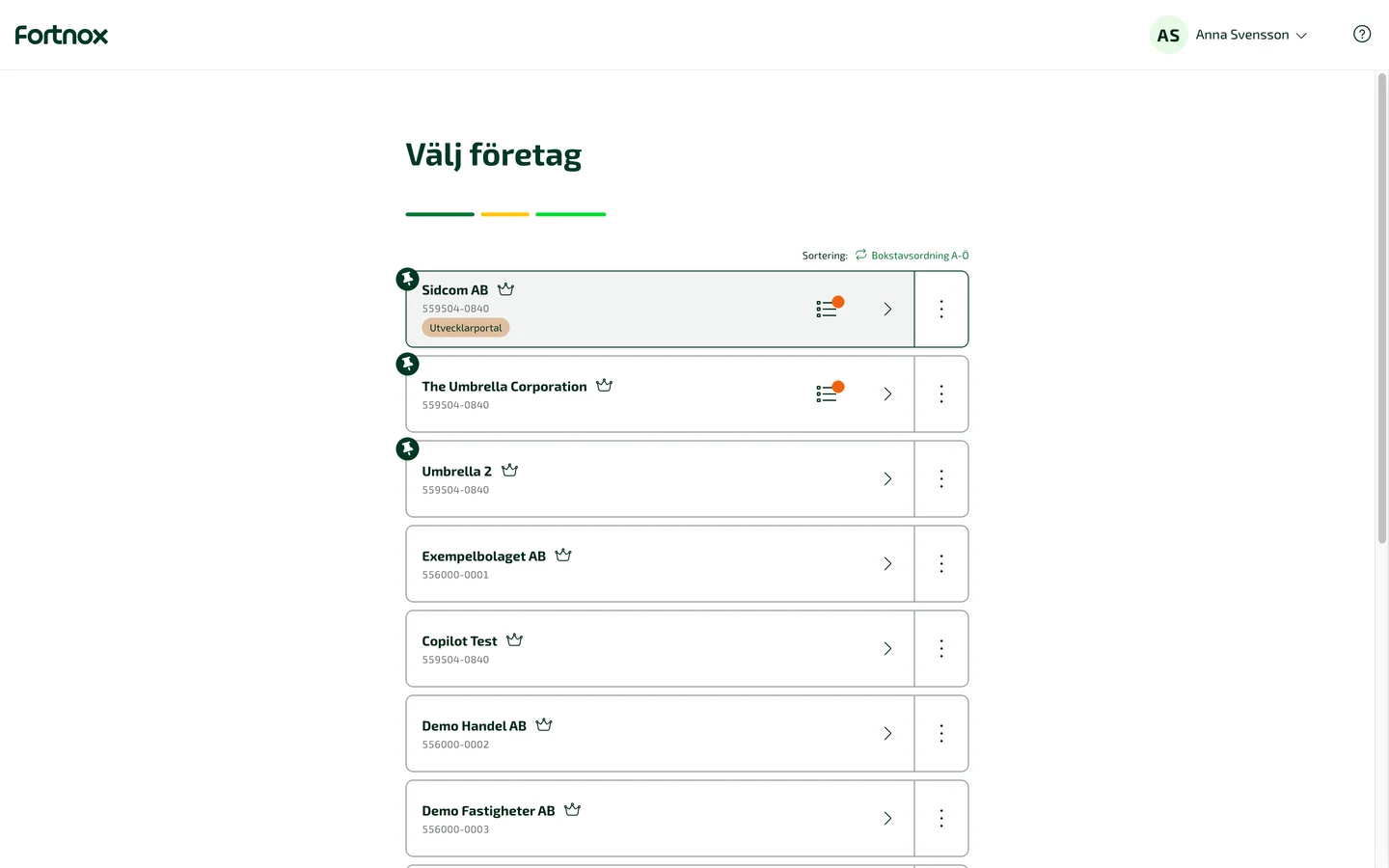
Choose the Fortnox company
Pick the company the agent should work with. You can add more in the next step.
ClickYour company
Have Digital Byrå? Then your company is listed twice. Choose the one that is not marked Digital Byrå, otherwise the licence is not found.
Stuck on this step?
It says the integration is not activated, or the licence is missing
The company has no free Copilot Connector licence. Everyone who connects needs their own. How to check for free licences and buy more. Then click the button to try connecting again.
Contact support about this step →Looks different on your screen?
Still stuck? Tell us which step and we will help you through it.
Step 10 of 16
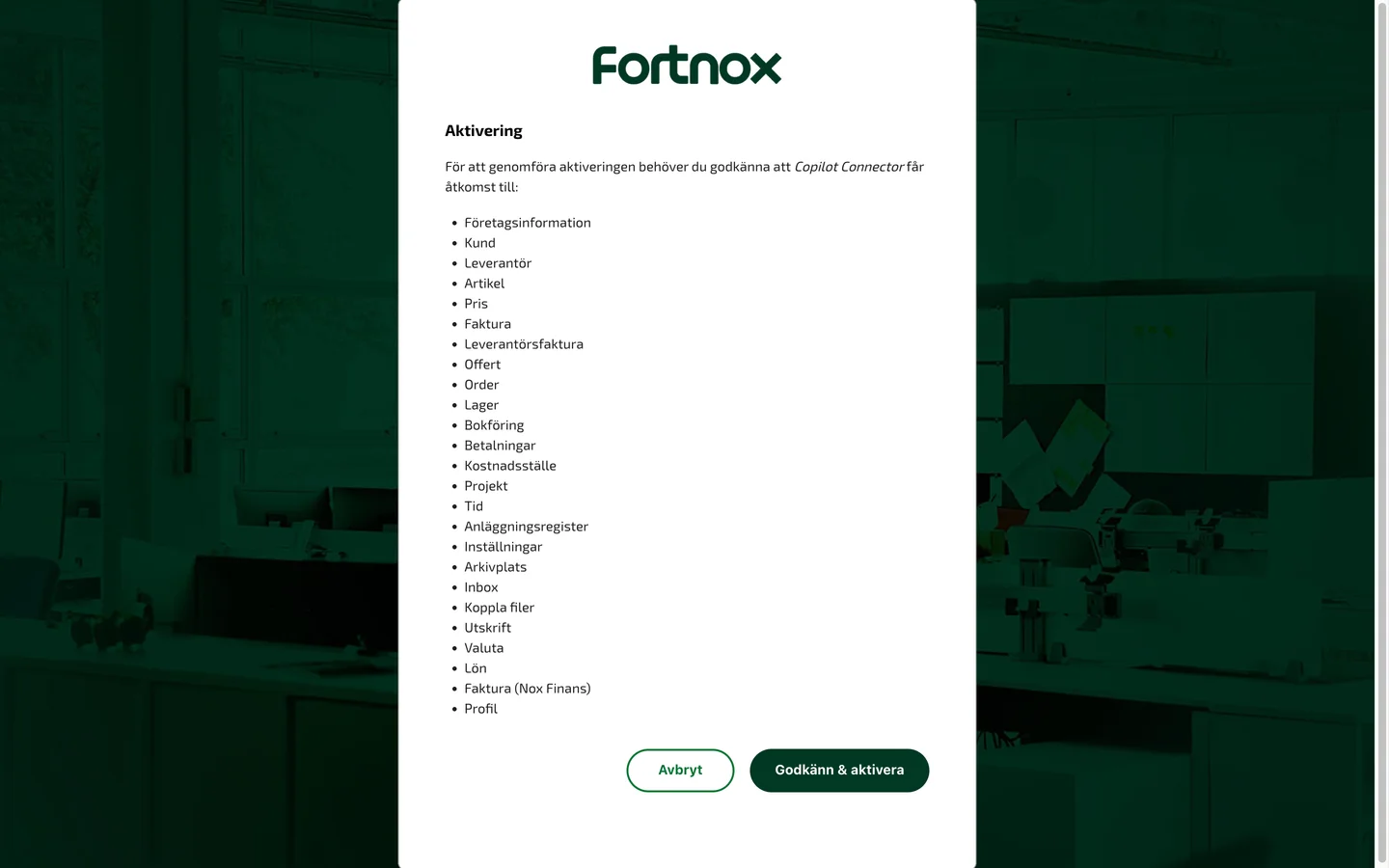
Approve access in Fortnox
Fortnox lists what the connector may use. What you can actually do is still limited by your own Fortnox user’s permissions.
ClickGodkänn & aktivera
Stuck on this step?
Contact support about this step →Looks different on your screen?
Still stuck? Tell us which step and we will help you through it.
Step 11 of 16
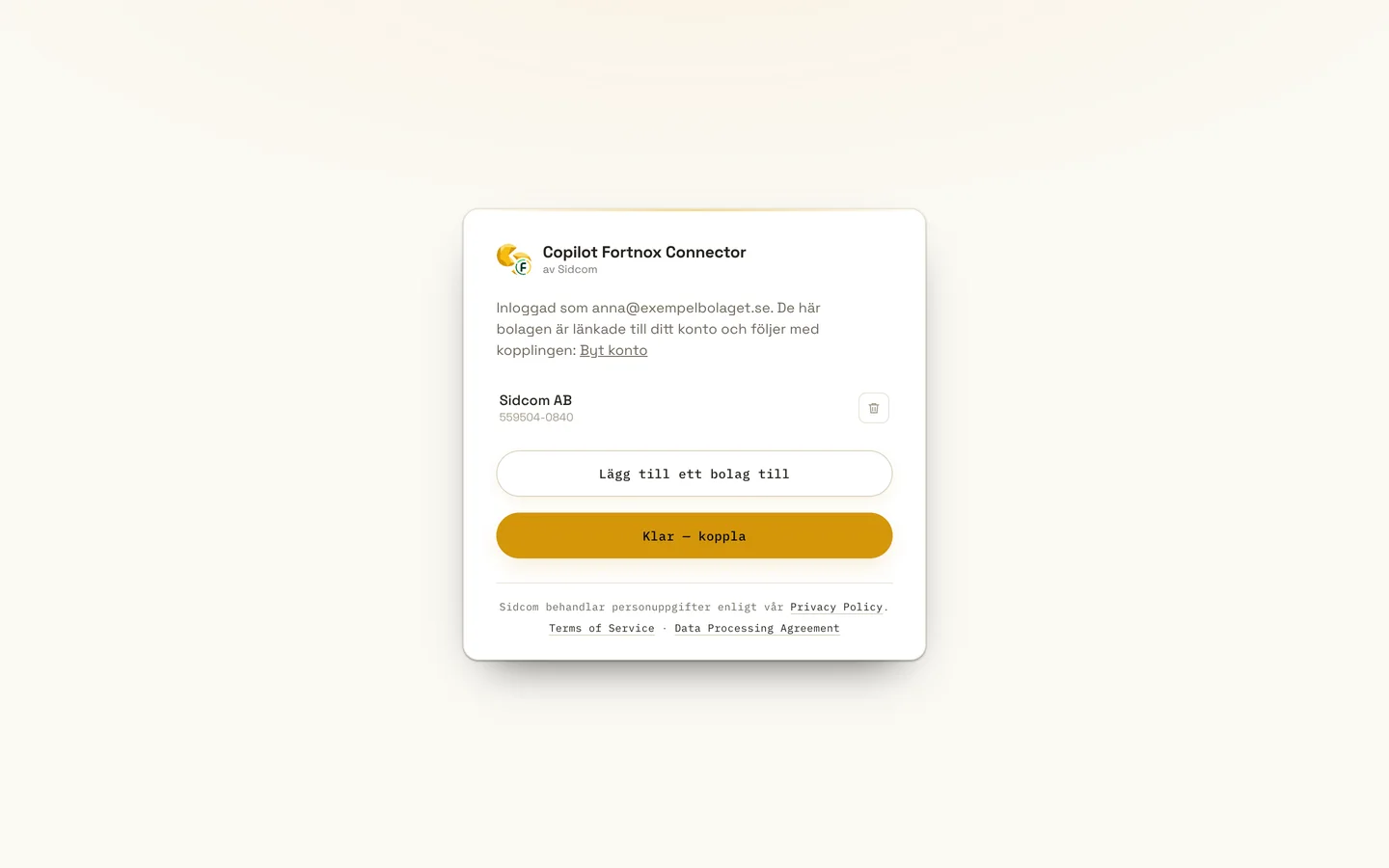
Click Klar, koppla (done, connect)
The company is now linked. Add more with Lägg till ett bolag till (add another company) if you need to, then finish.
ClickKlar — koppla
Stuck on this step?
Contact support about this step →Looks different on your screen?
Still stuck? Tell us which step and we will help you through it.
Step 12 of 16
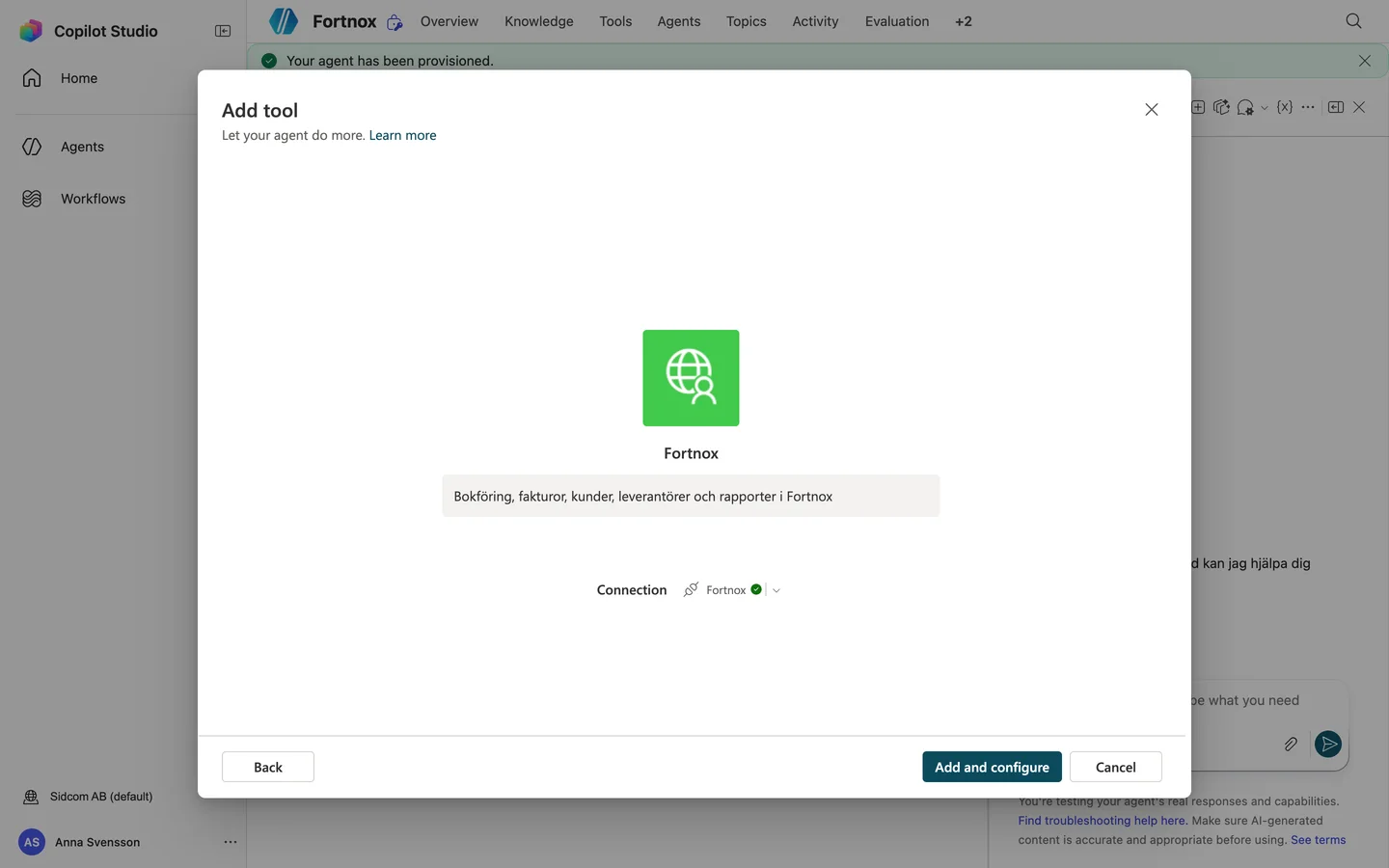
Click Add and configure
Back in Copilot Studio the connection is selected.
ClickAdd and configure
Stuck on this step?
Contact support about this step →Looks different on your screen?
Still stuck? Tell us which step and we will help you through it.
Step 13 of 16
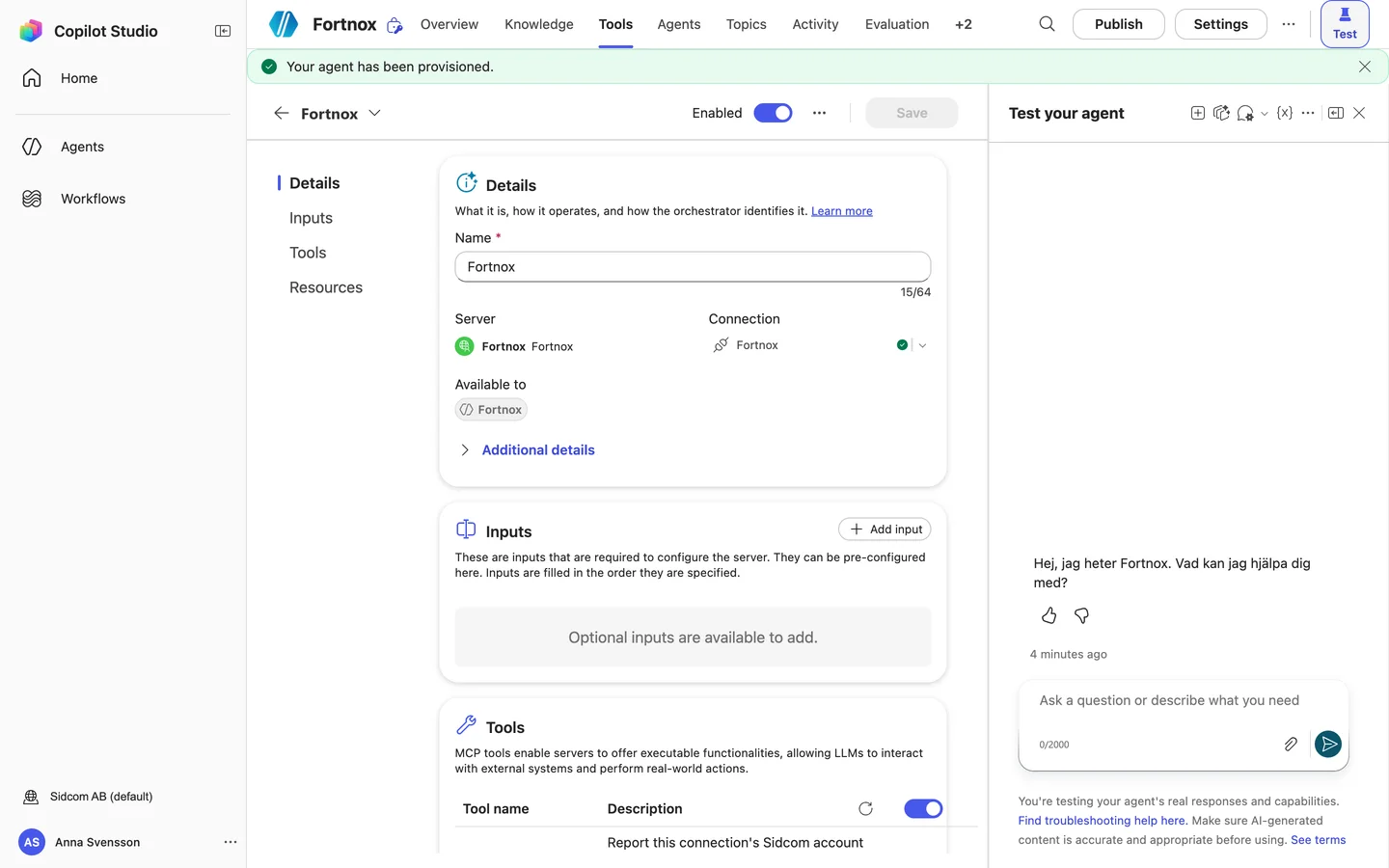
All Fortnox tools are on
Allow all is on. Should the agent only read? Turn Allow all off and switch off create, update, delete, action and upload.
Stuck on this step?
Contact support about this step →Looks different on your screen?
Still stuck? Tell us which step and we will help you through it.
Step 14 of 16
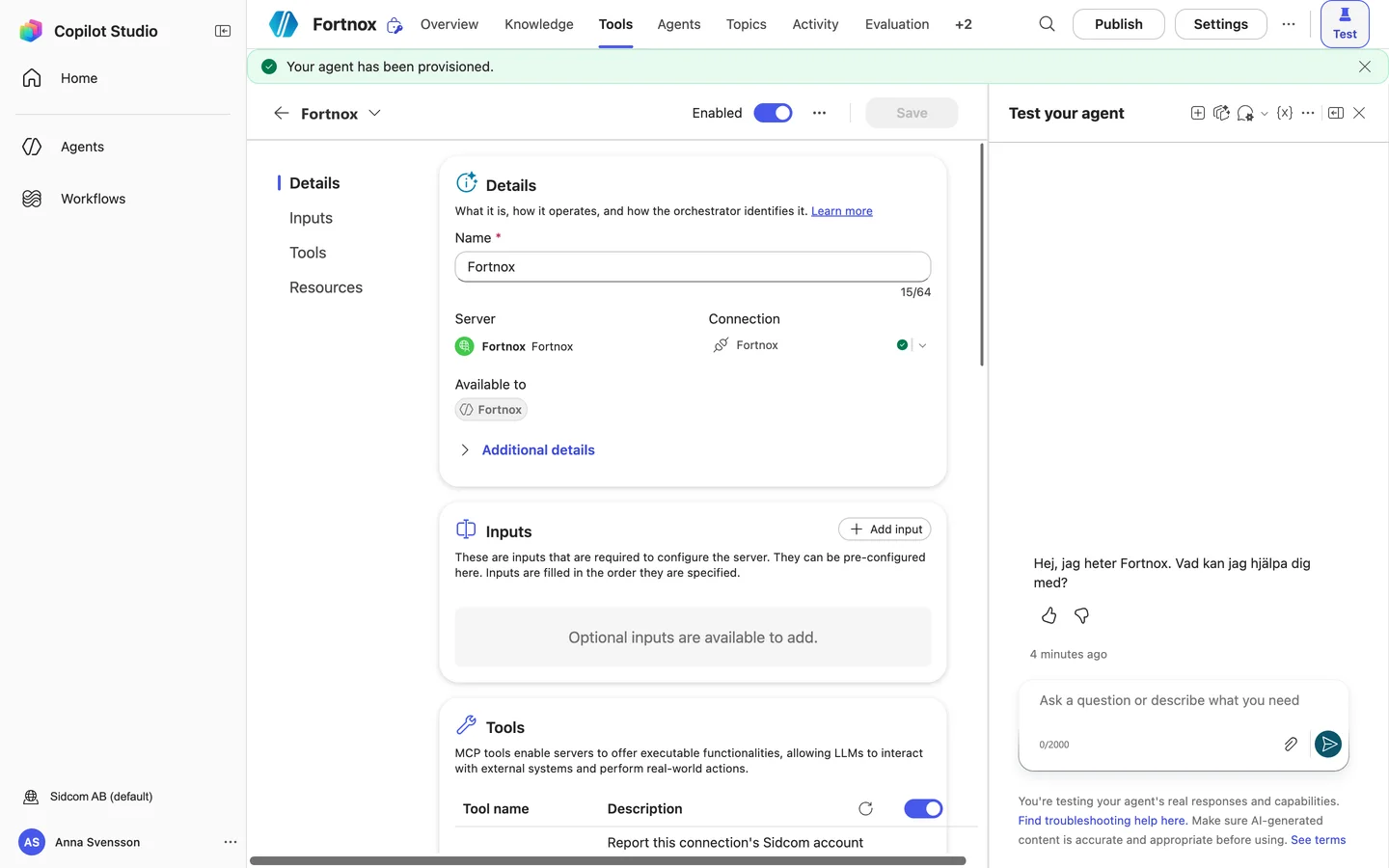
Open Additional details
ClickAdditional details
Stuck on this step?
Contact support about this step →Looks different on your screen?
Still stuck? Tell us which step and we will help you through it.
Step 15 of 16
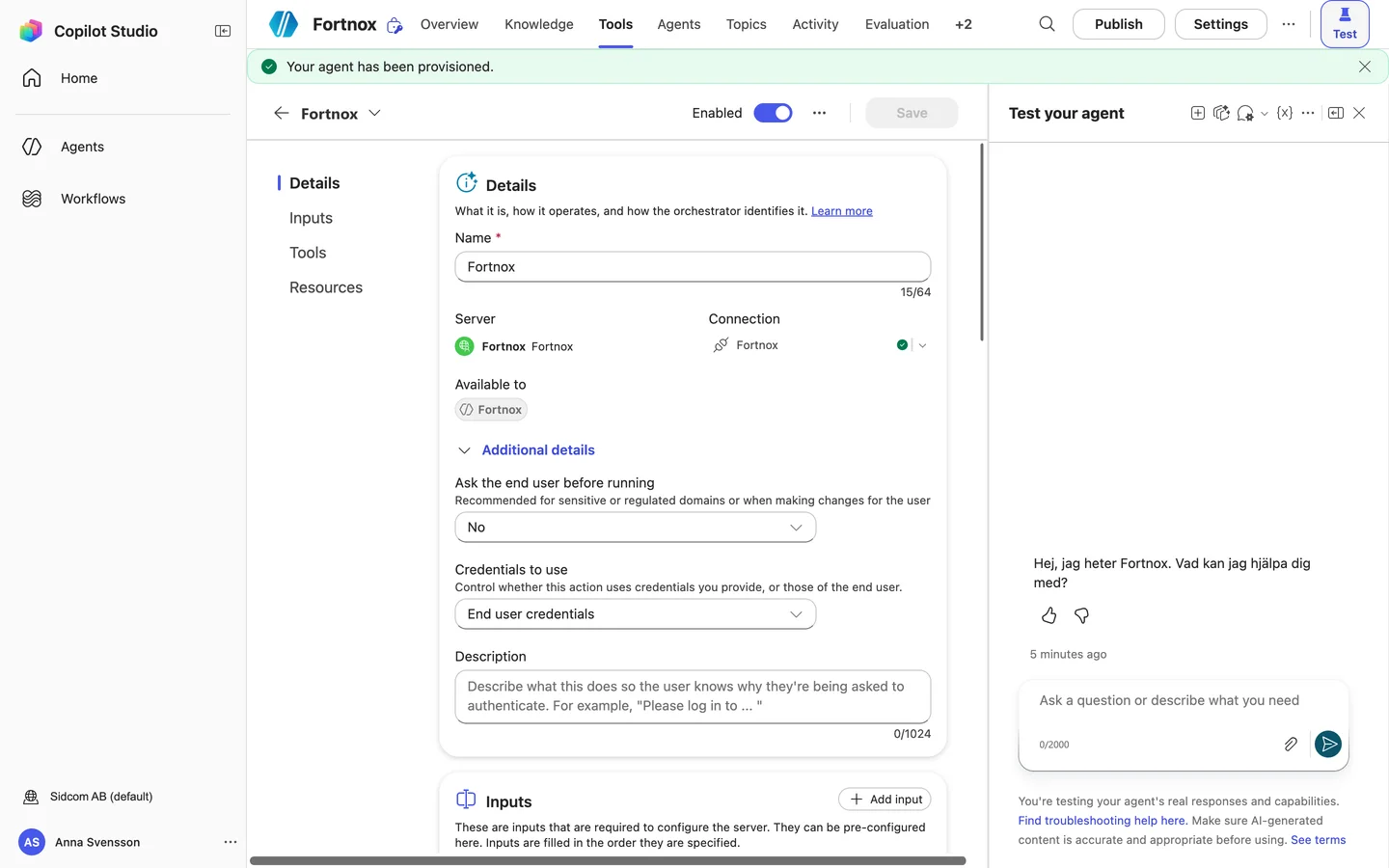
Choose whether the user approves each call
Ask the end user before running decides whether Copilot asks every time the agent uses Fortnox. In the example it is set to No, so the agent answers straight away and still asks in the chat before creating or changing anything, as the instructions say. Choose Yes if you want to approve each call.
Stuck on this step?
Contact support about this step →Looks different on your screen?
Still stuck? Tell us which step and we will help you through it.
Step 16 of 16
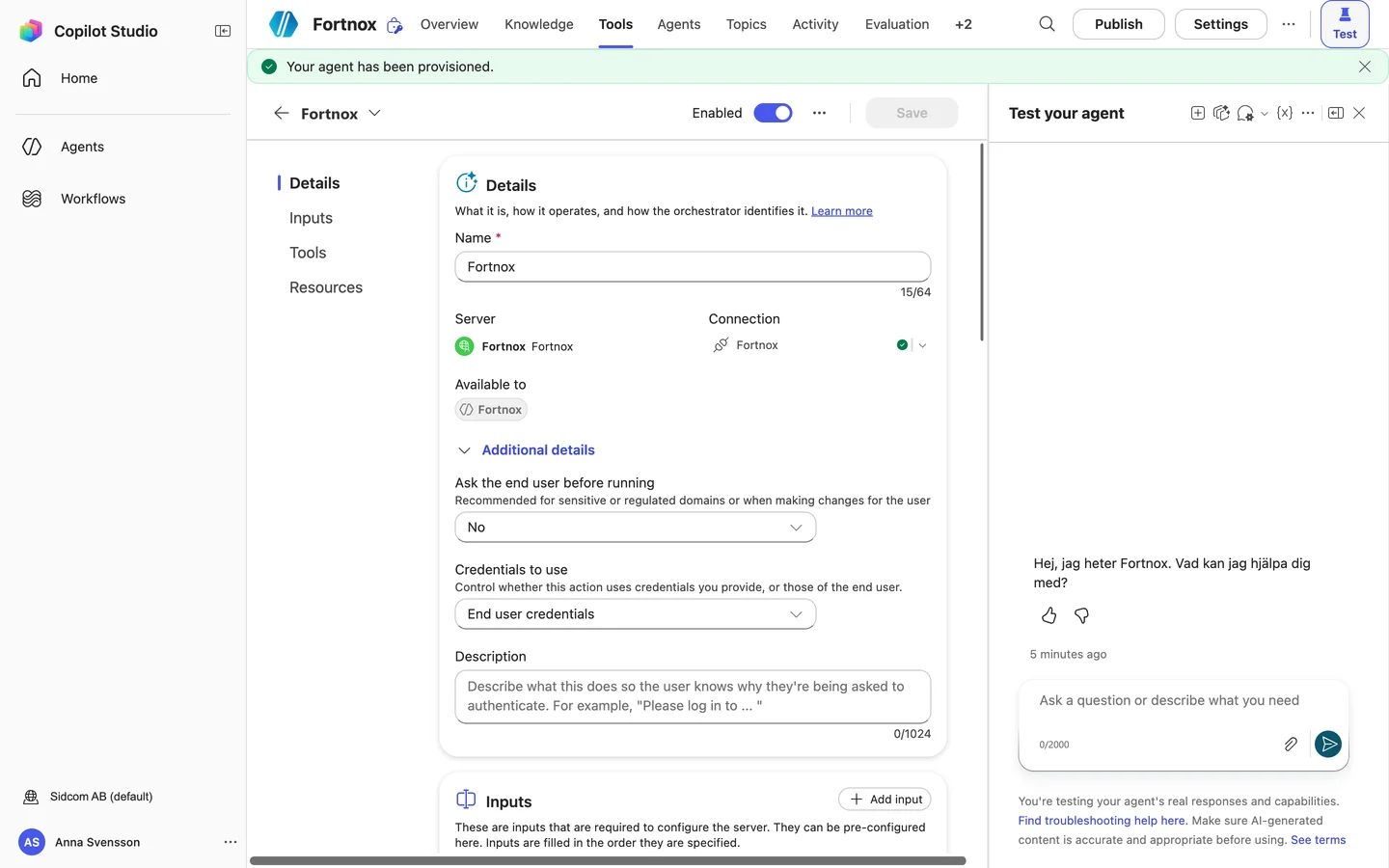
Leave End user credentials selected
Everyone signs in with their own Fortnox account and uses their own licence. Do not choose Maker-provided credentials.
Stuck on this step?
Contact support about this step →Looks different on your screen?
Still stuck? Tell us which step and we will help you through it.
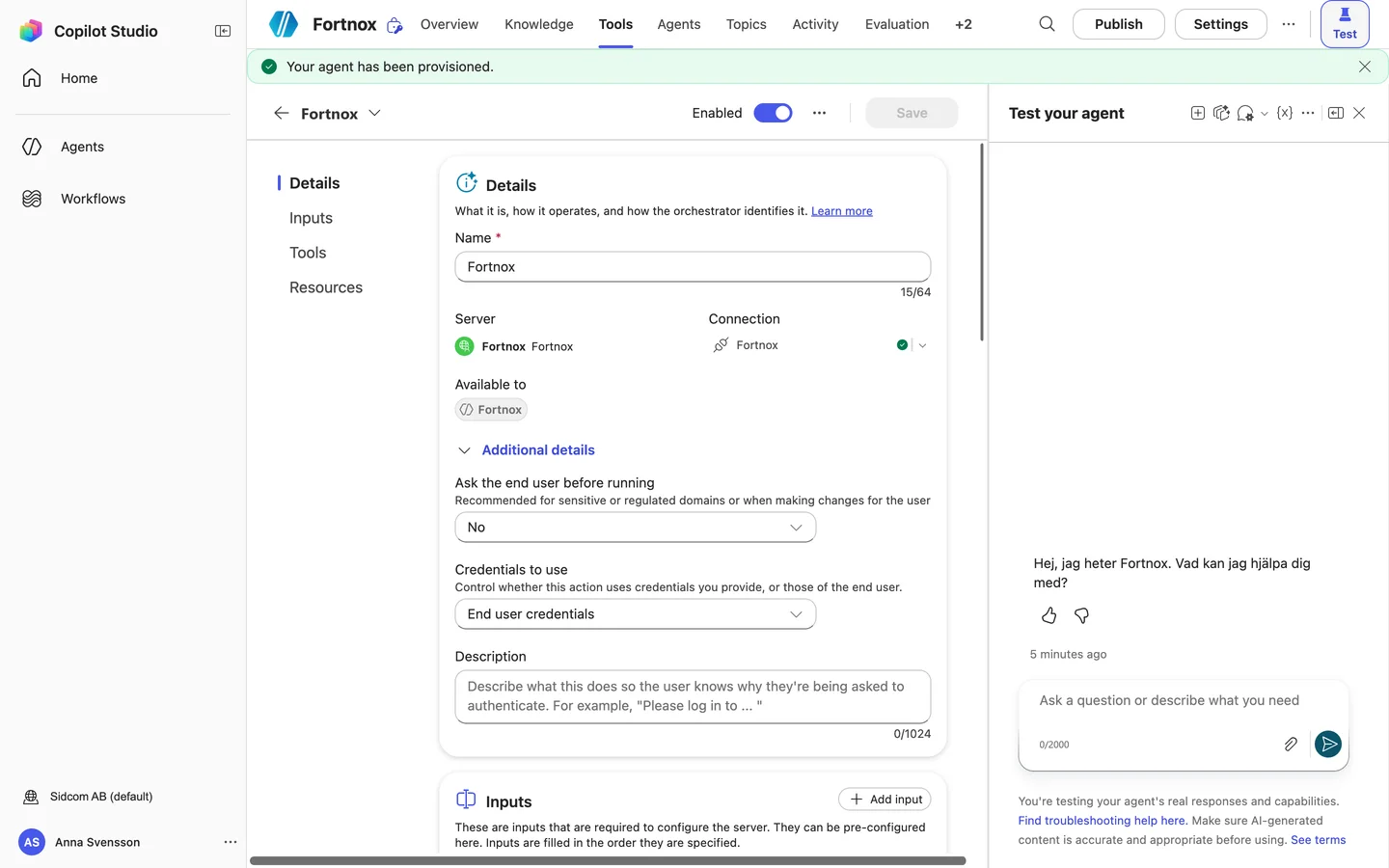
Done
The agent is published. Next, add it to your Copilot.
Step 1 of 10
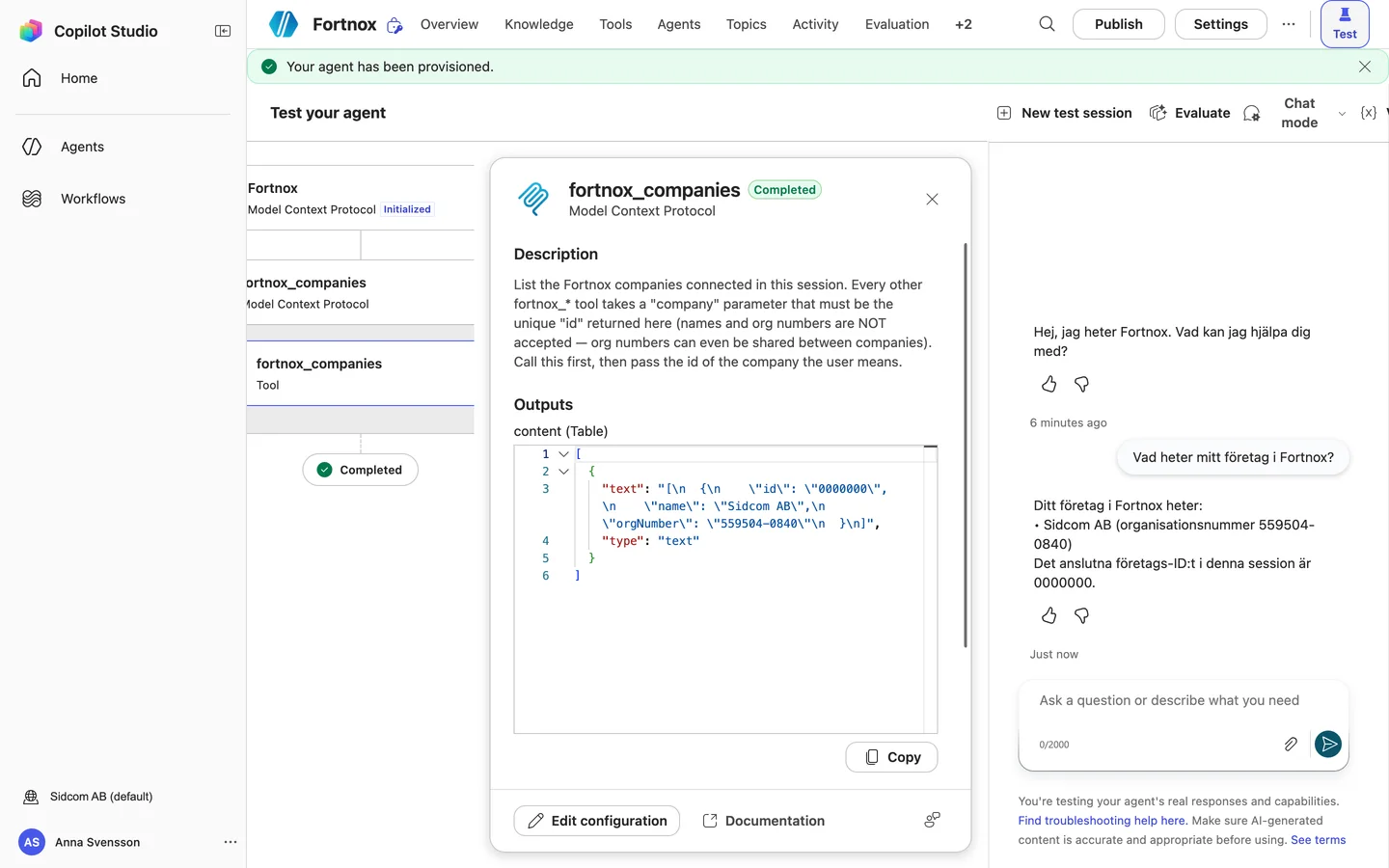
Test the agent
Ask a question in Test your agent on the right.
What is my company called in Fortnox?Stuck on this step?
Contact support about this step →Looks different on your screen?
Still stuck? Tell us which step and we will help you through it.
Step 2 of 10
The agent answers from Fortnox
Without asking for permission. Now publish the agent.
Stuck on this step?
Contact support about this step →Looks different on your screen?
Still stuck? Tell us which step and we will help you through it.
Step 3 of 10
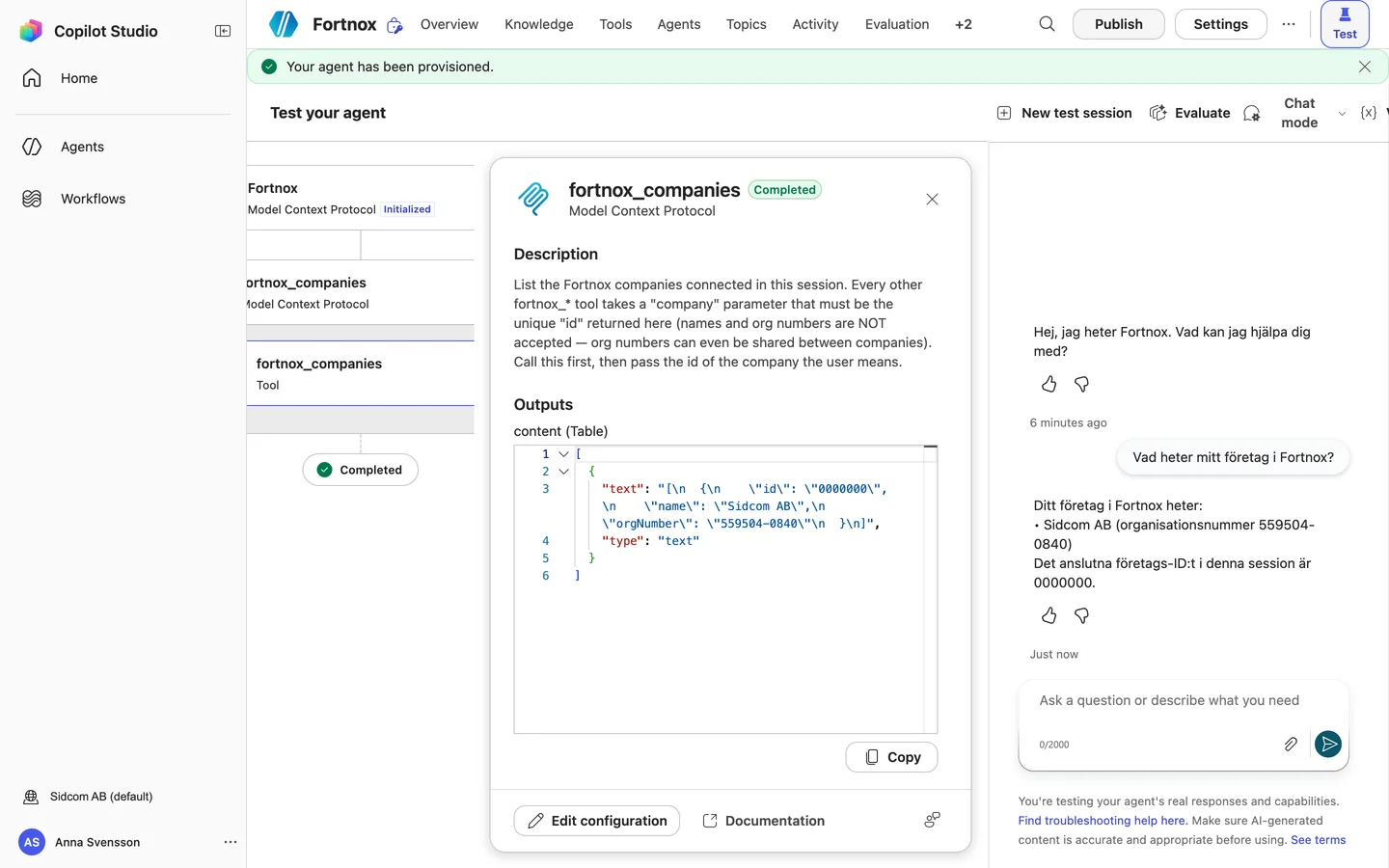
Click Publish
At the top right.
ClickPublish
Stuck on this step?
Contact support about this step →Looks different on your screen?
Still stuck? Tell us which step and we will help you through it.
Step 4 of 10
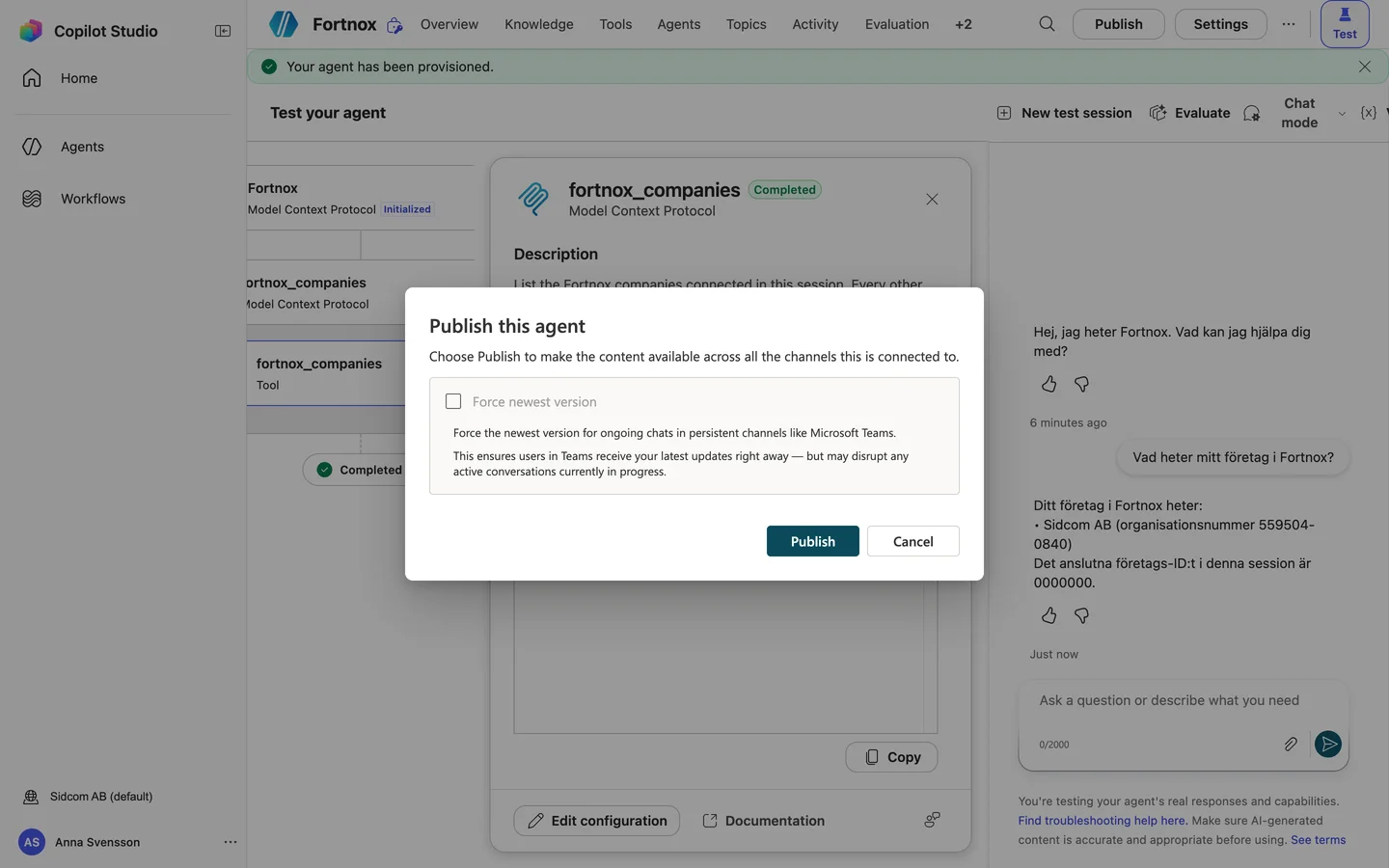
Confirm with Publish
ClickPublish
Stuck on this step?
Contact support about this step →Looks different on your screen?
Still stuck? Tell us which step and we will help you through it.
Step 5 of 10
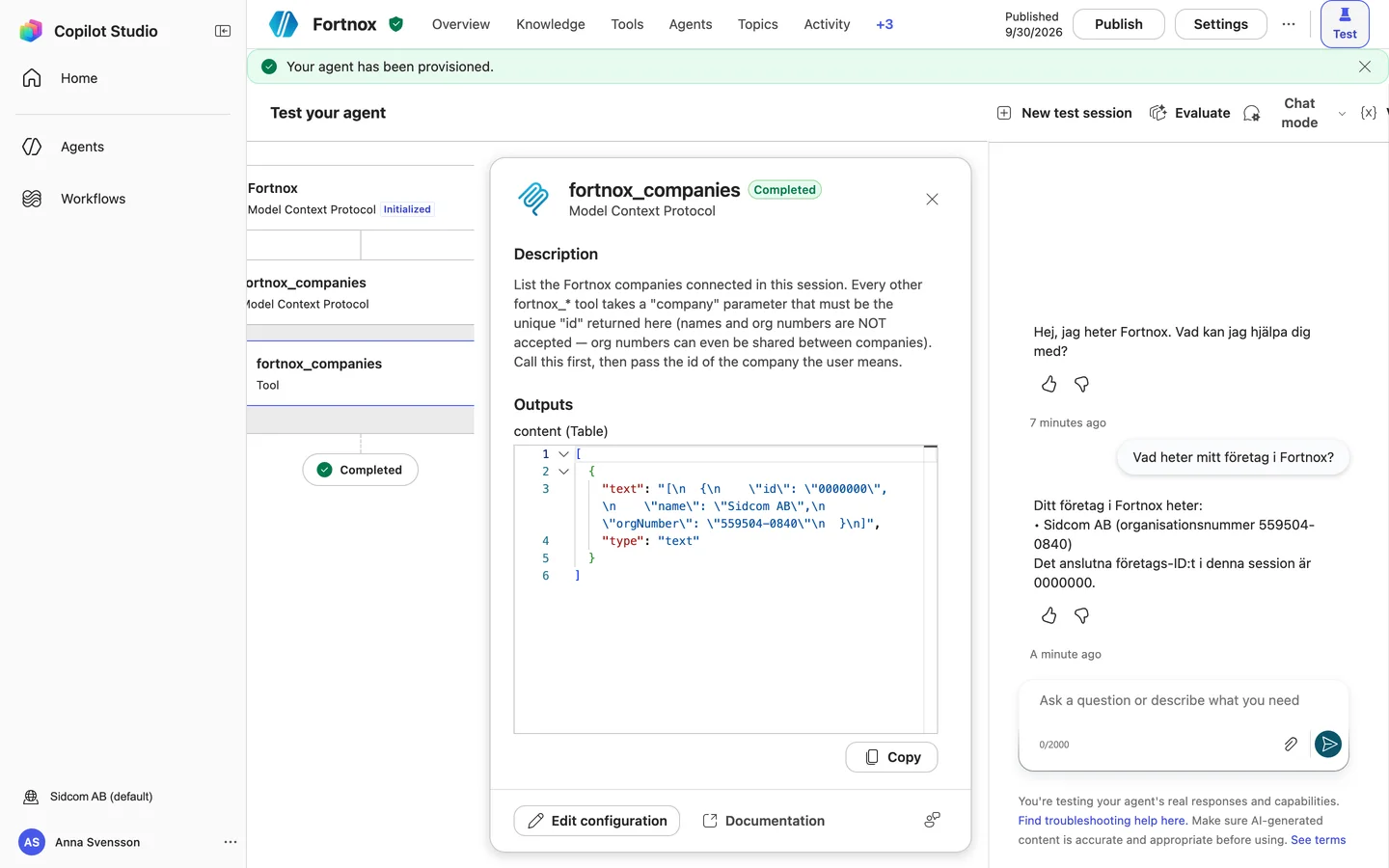
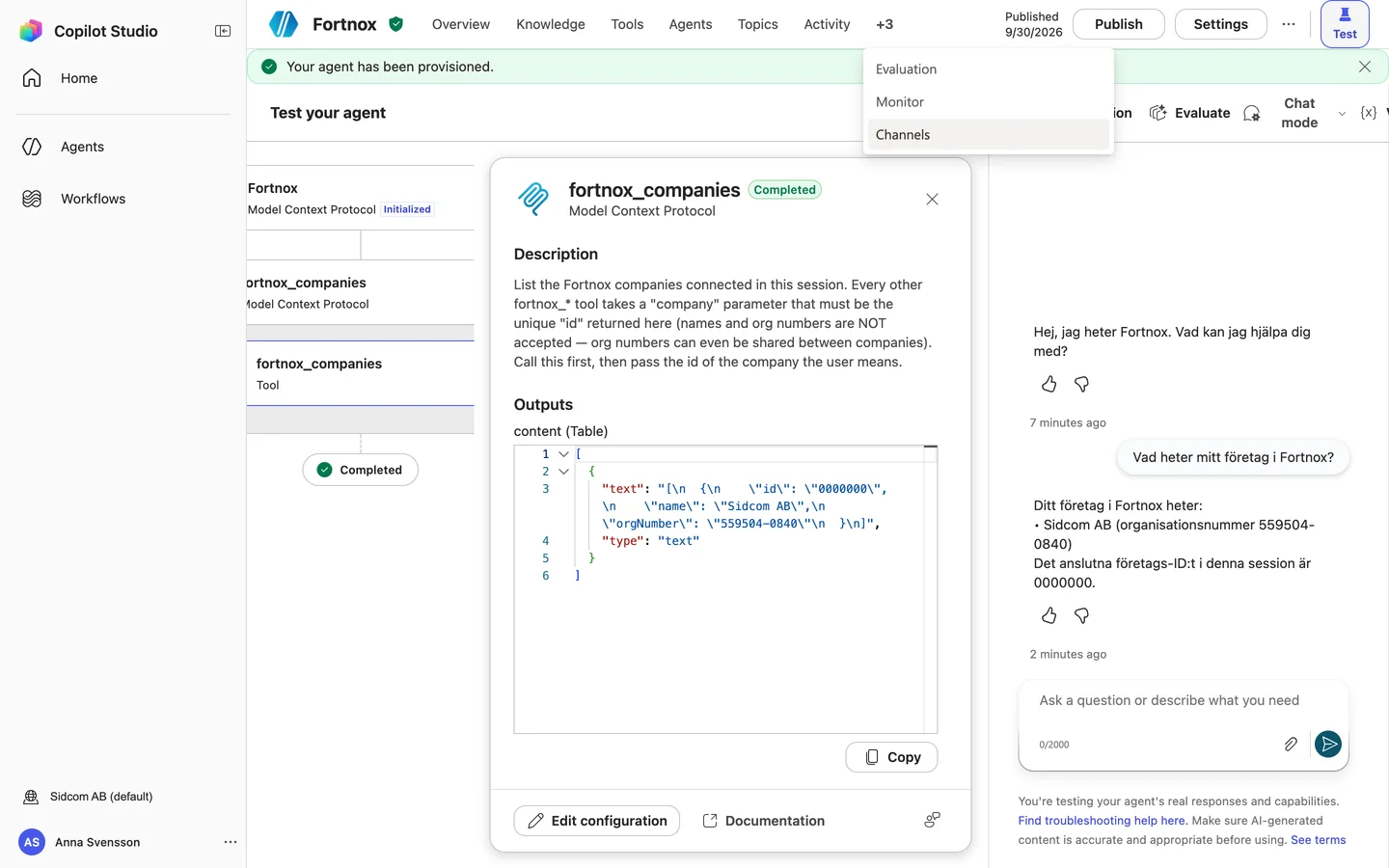
Show more tabs
The plus button at the end of the tab row, for example +2.
Stuck on this step?
Contact support about this step →Looks different on your screen?
Still stuck? Tell us which step and we will help you through it.
Step 6 of 10
Choose Channels
ClickChannels
Stuck on this step?
Contact support about this step →Looks different on your screen?
Still stuck? Tell us which step and we will help you through it.
Step 7 of 10
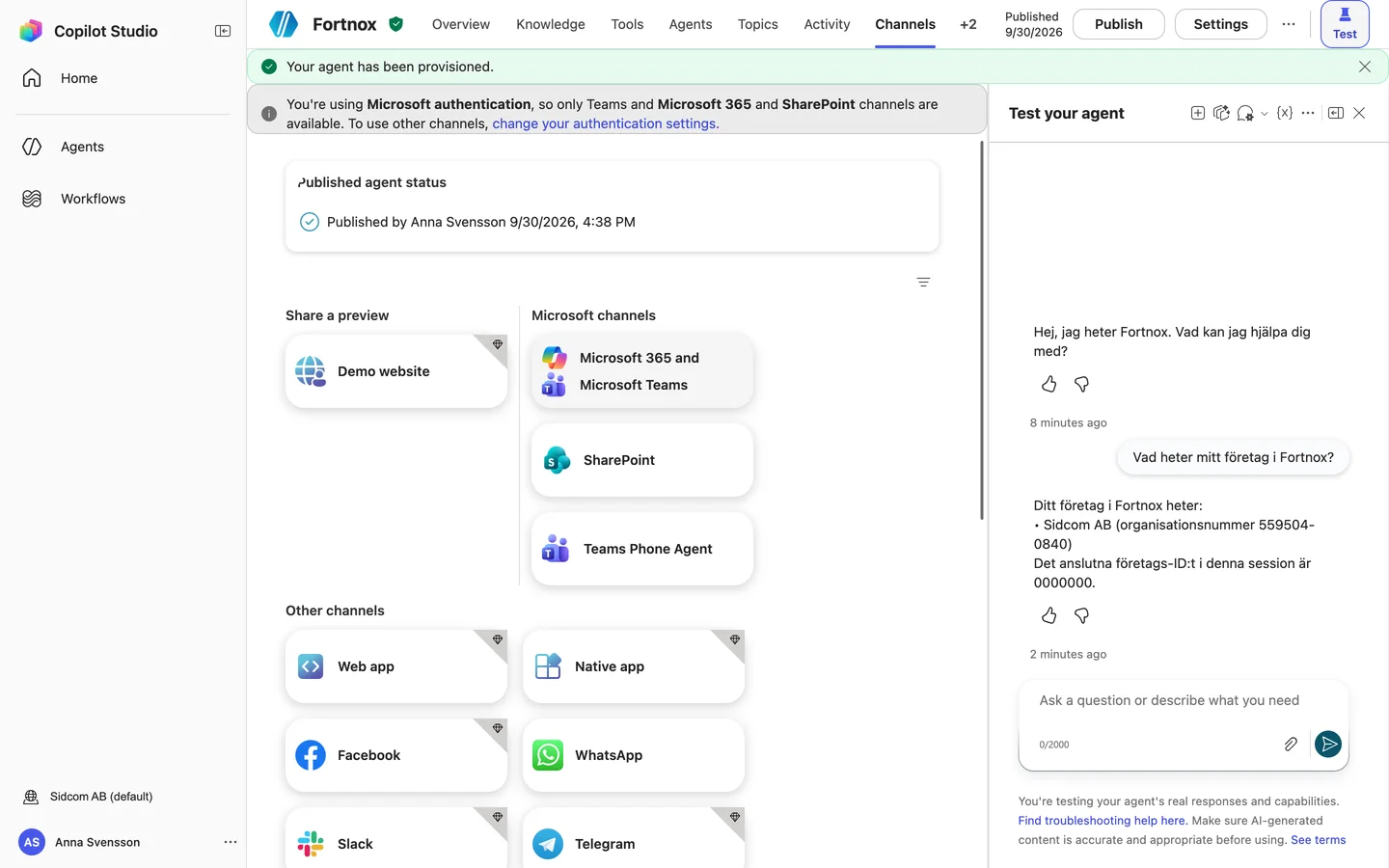
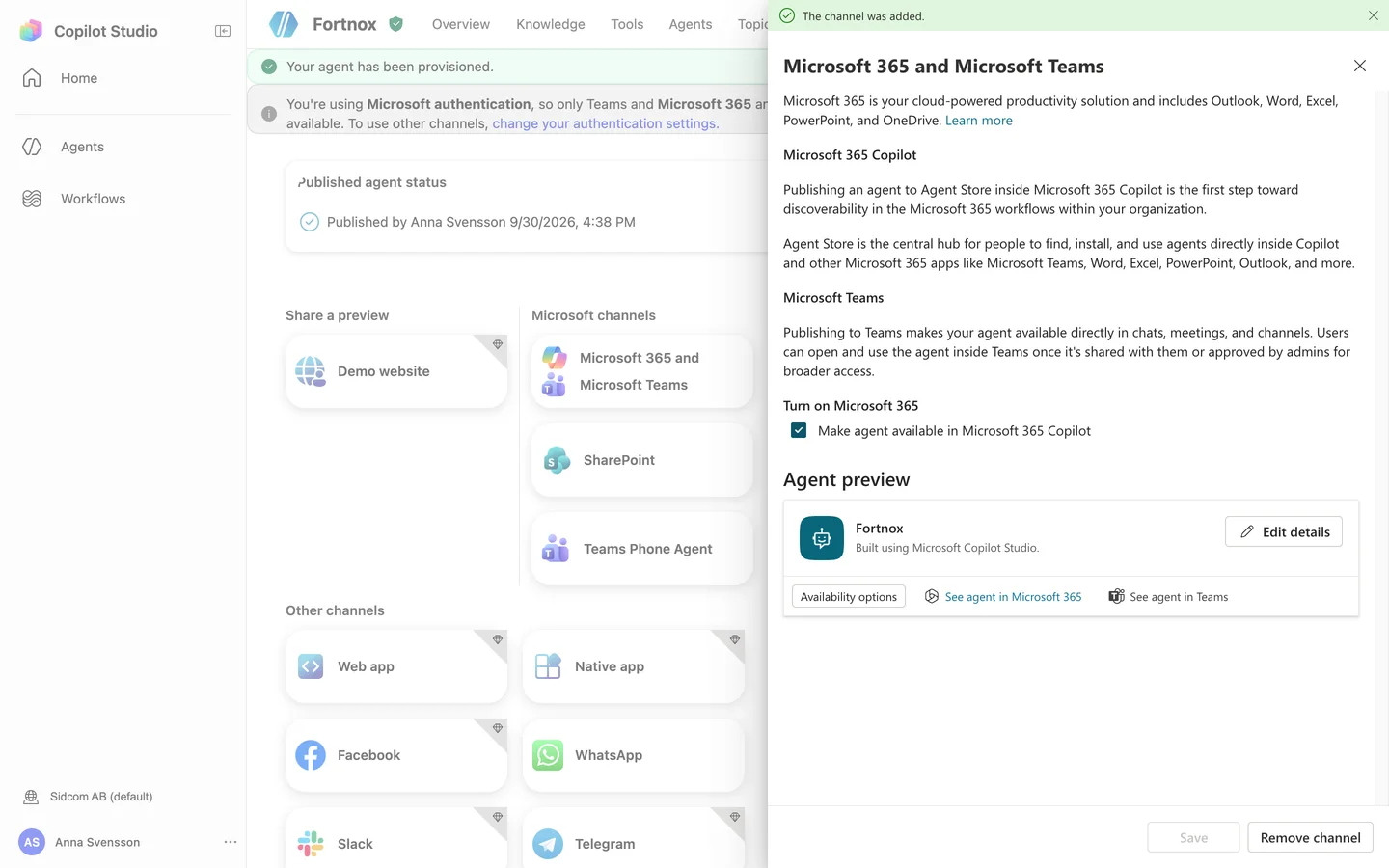
Choose Microsoft 365 and Microsoft Teams
ClickMicrosoft 365 and Microsoft Teams
Stuck on this step?
Contact support about this step →Looks different on your screen?
Still stuck? Tell us which step and we will help you through it.
Step 8 of 10
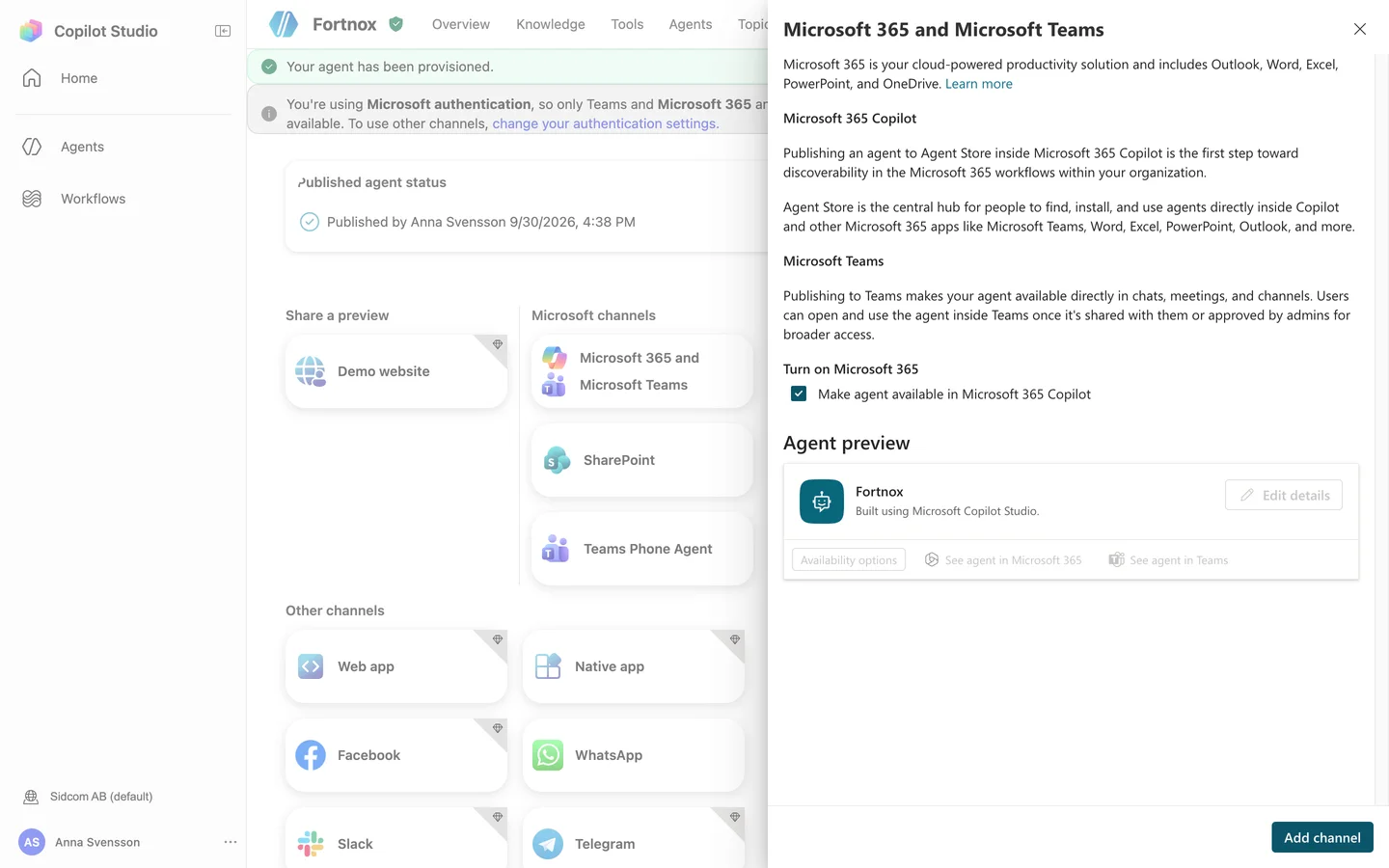
Make agent available in Microsoft 365 Copilot should be ticked
It is ticked from the start, so the agent can be used in Copilot, not only in Teams.
Stuck on this step?
Contact support about this step →Looks different on your screen?
Still stuck? Tell us which step and we will help you through it.
Step 9 of 10
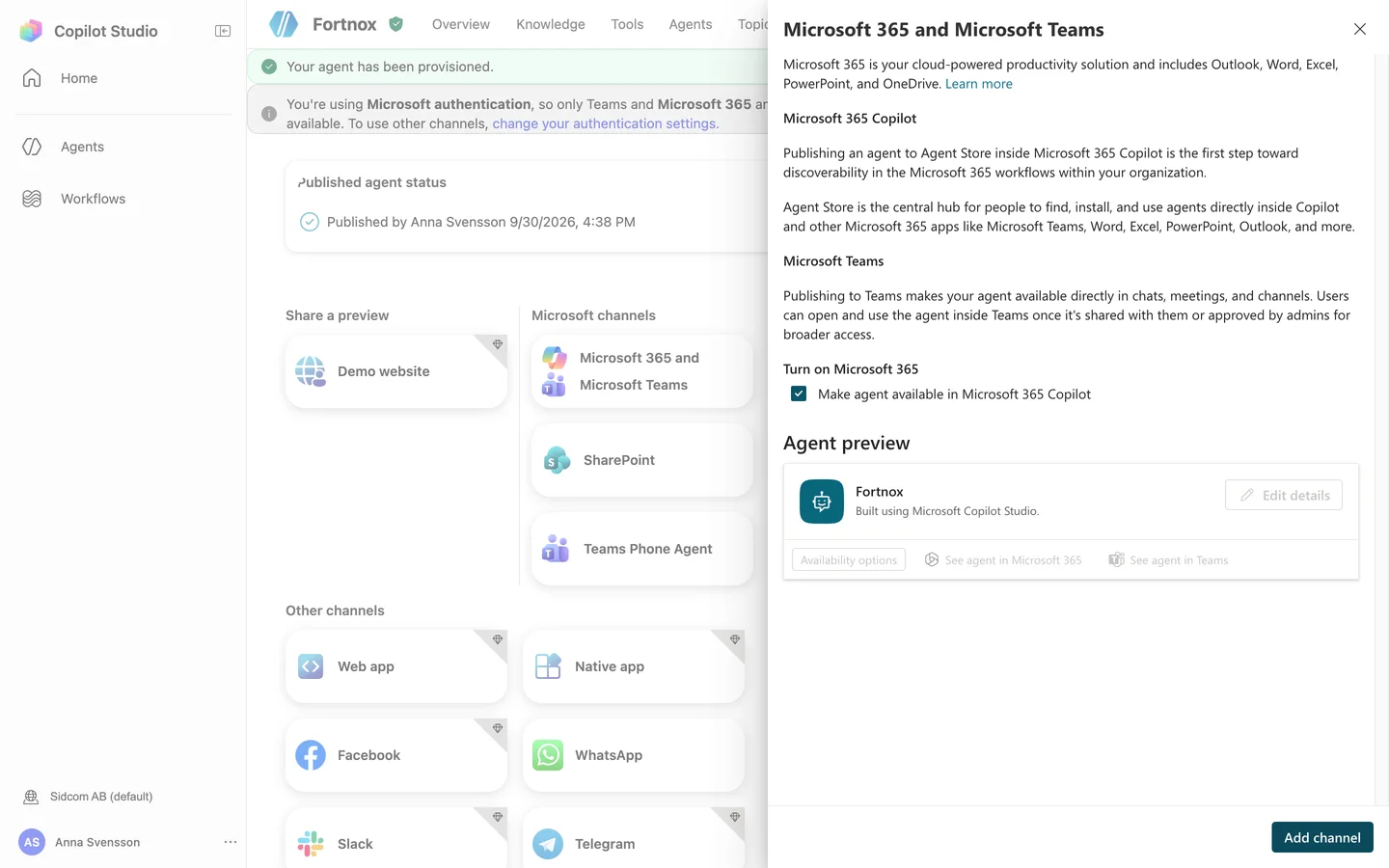
Click Add channel
ClickAdd channel
Stuck on this step?
Contact support about this step →Looks different on your screen?
Still stuck? Tell us which step and we will help you through it.
Step 10 of 10
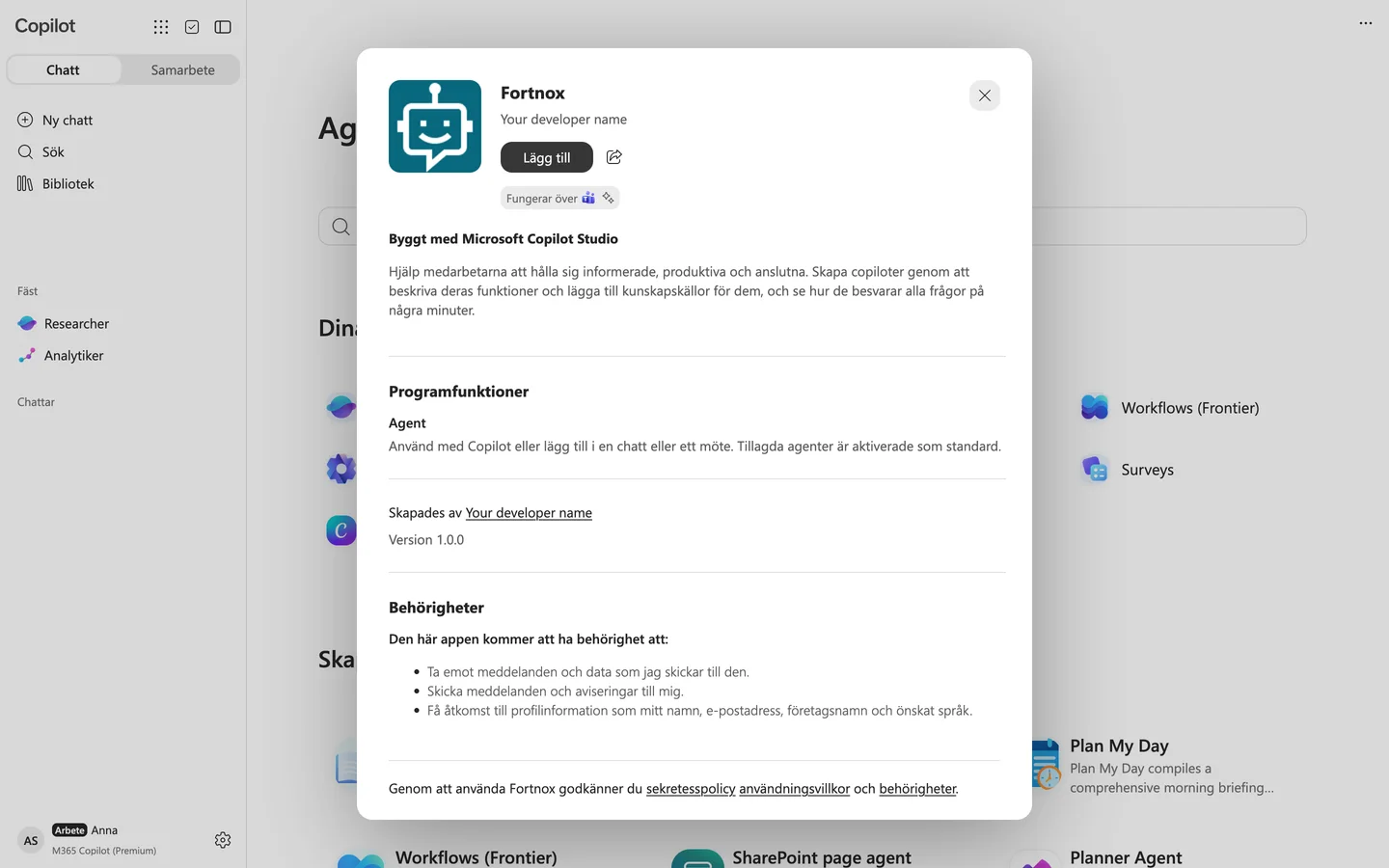
Click See agent in Microsoft 365
The agent opens in Microsoft 365 Copilot so you can add it for yourself.
ClickSee agent in Microsoft 365
Set a developer name and description under Edit details, otherwise it says Your developer name. Colleagues reach the agent through Availability options, and to roll it out to the whole organisation IT approves it in the Teams admin center.
Stuck on this step?
Contact support about this step →Looks different on your screen?
Still stuck? Tell us which step and we will help you through it.
Done
Fortnox is connected. Ask the agent about your company, in Copilot or in Teams.
Step 1 of 8
Click Lägg till (add)
The agent is added to your Copilot and Teams.
ClickLägg till
Stuck on this step?
Contact support about this step →Looks different on your screen?
Still stuck? Tell us which step and we will help you through it.
Step 2 of 8
Ask a question
The agent opens in its own chat.
What is my company called in Fortnox?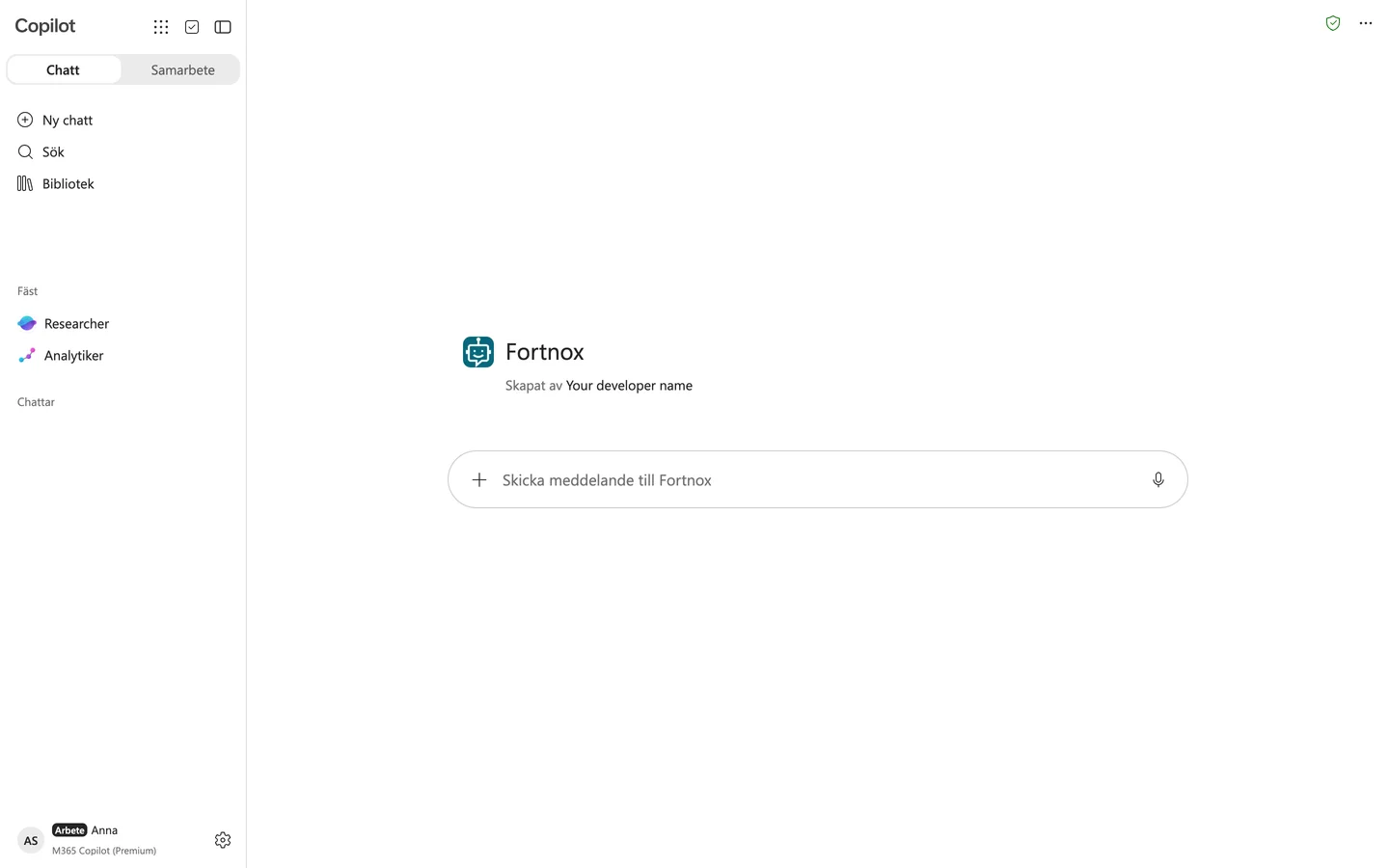
Stuck on this step?
Contact support about this step →Looks different on your screen?
Still stuck? Tell us which step and we will help you through it.
Step 3 of 8
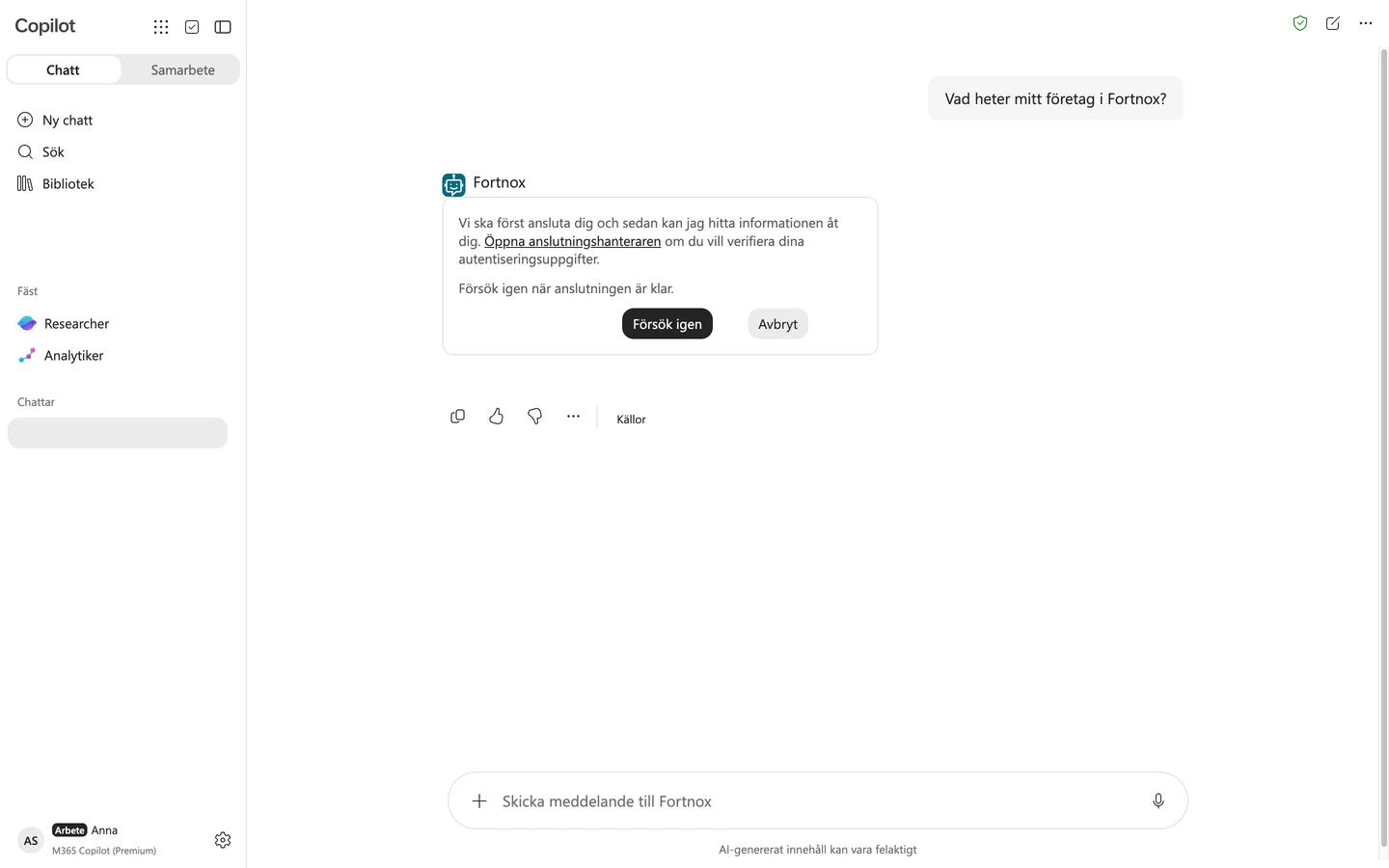
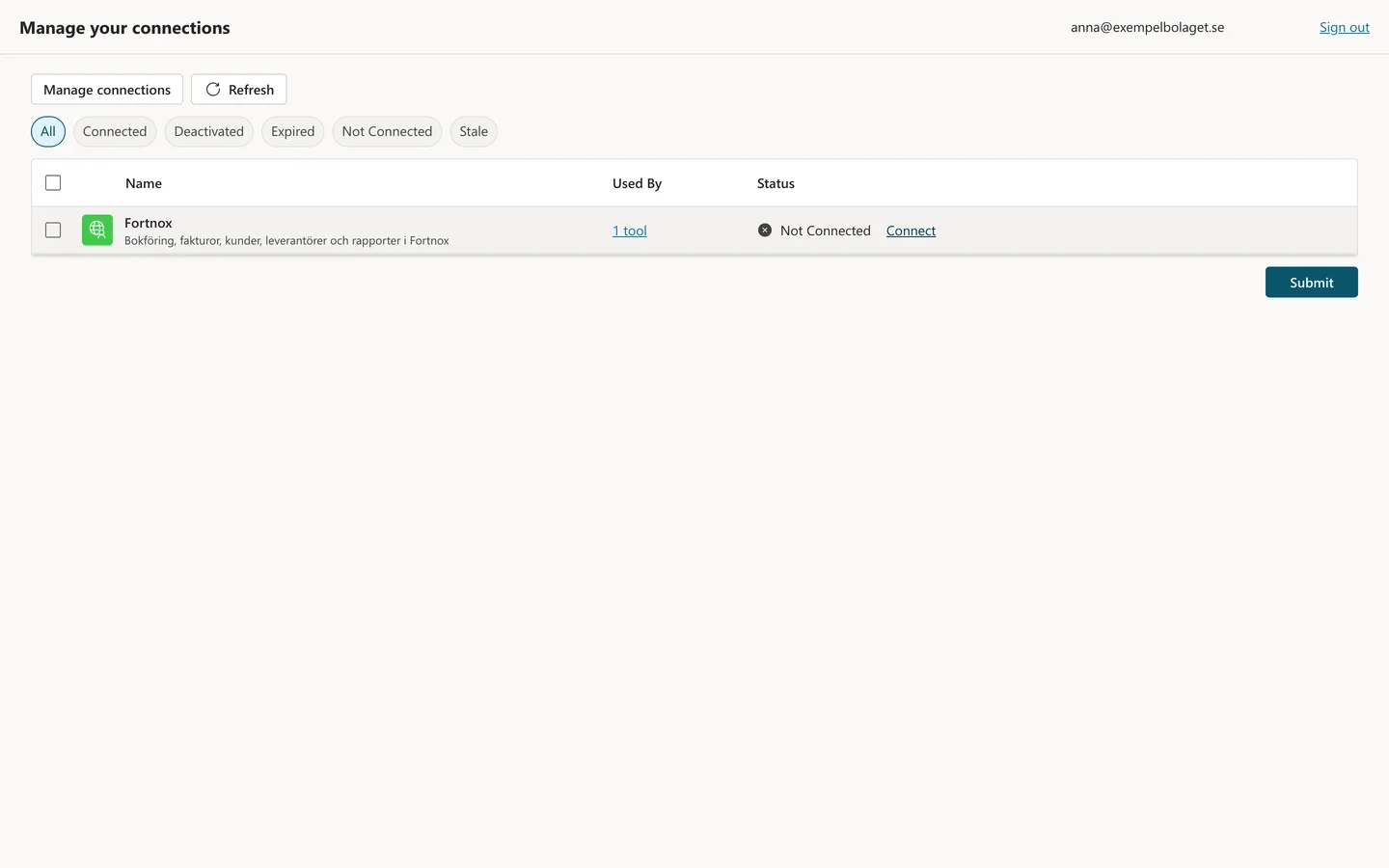
Click Öppna anslutningshanteraren (open the connection manager)
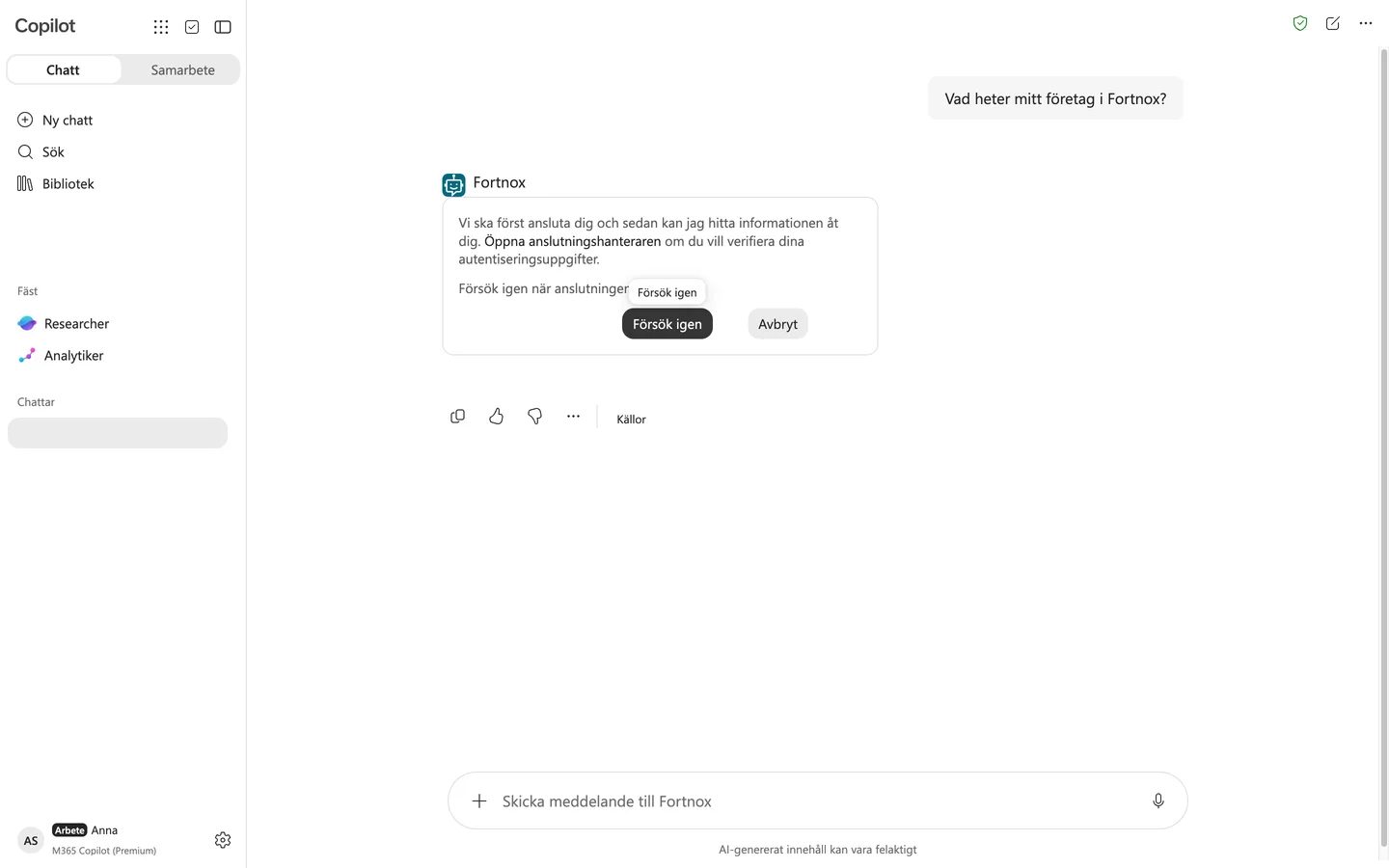
The first time, Copilot asks you to connect to Fortnox. The connection manager opens in a new tab.
ClickÖppna anslutningshanteraren
Stuck on this step?
Contact support about this step →Looks different on your screen?
Still stuck? Tell us which step and we will help you through it.
Step 4 of 8
Click Connect
ClickConnect
Stuck on this step?
Contact support about this step →Looks different on your screen?
Still stuck? Tell us which step and we will help you through it.
Step 5 of 8
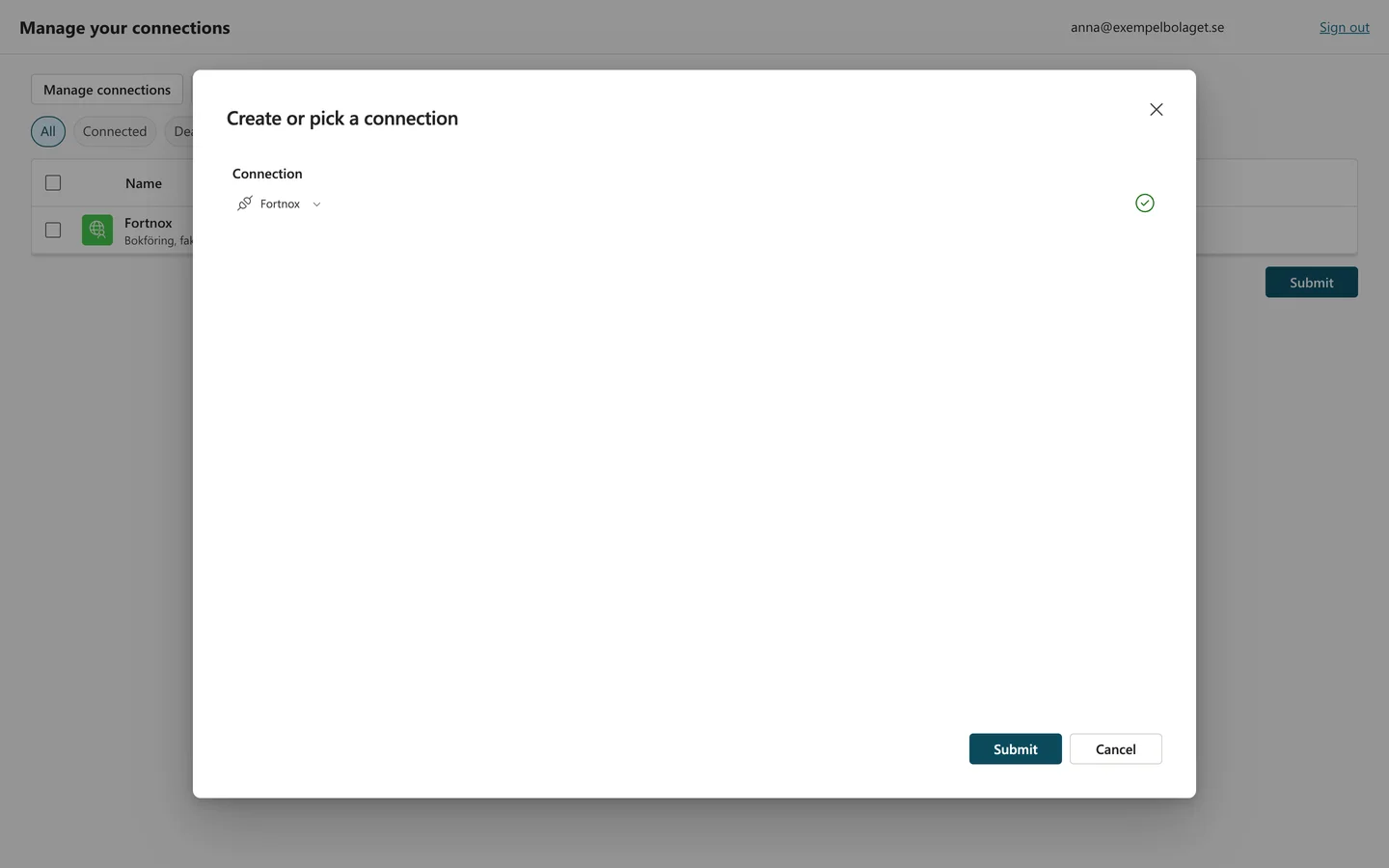
Pick the connection and click Submit
If you added the connector yourself, the connection already exists. If you are a colleague, choose Create new connection and sign in with your own Sidcom and Fortnox account.
ClickSubmit
Stuck on this step?
Contact support about this step →Looks different on your screen?
Still stuck? Tell us which step and we will help you through it.
Step 6 of 8
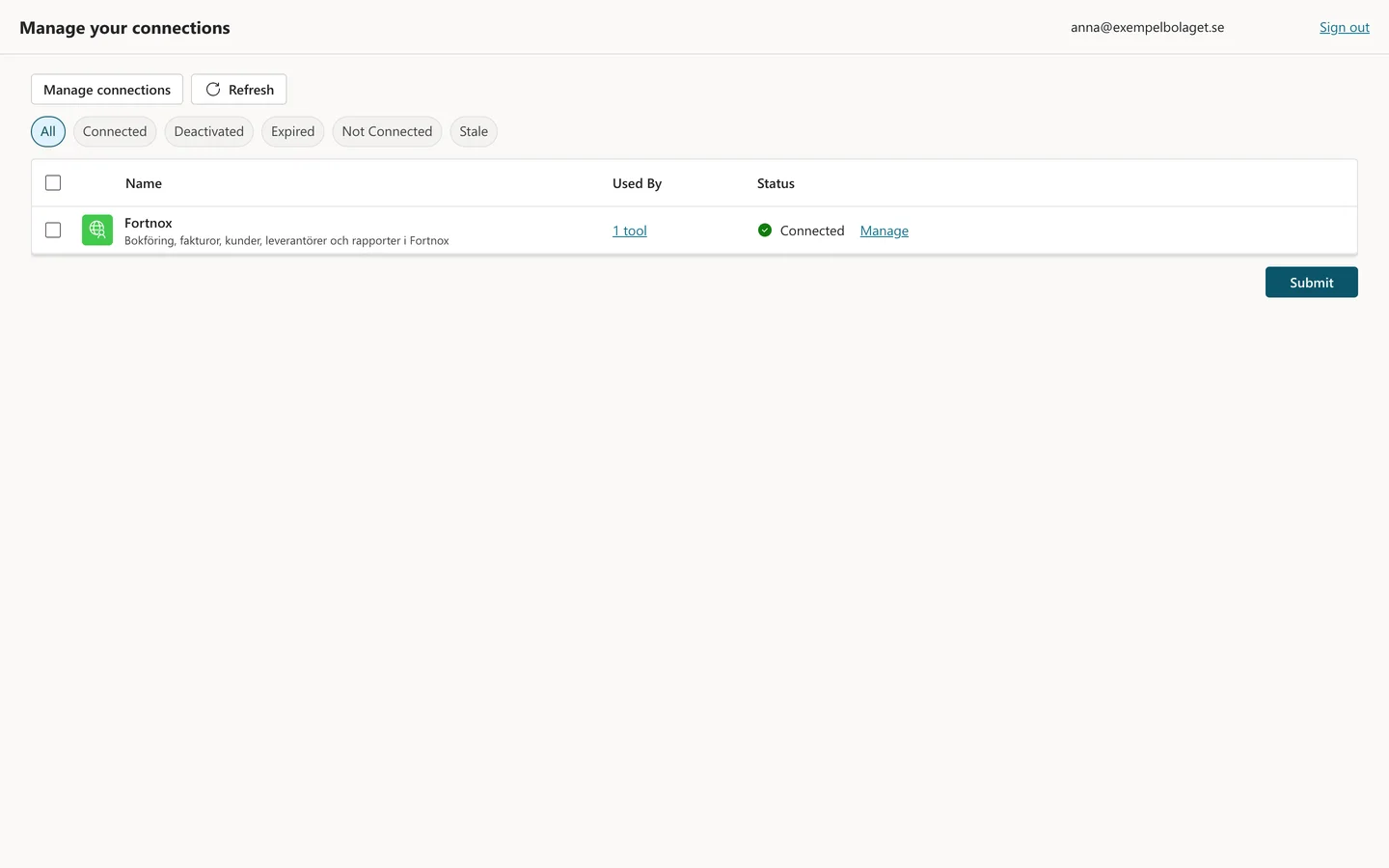
It now says Connected
Close the tab and go back to Copilot.
Stuck on this step?
Contact support about this step →Looks different on your screen?
Still stuck? Tell us which step and we will help you through it.
Step 7 of 8
Click Försök igen (try again)
ClickFörsök igen
Stuck on this step?
Contact support about this step →Looks different on your screen?
Still stuck? Tell us which step and we will help you through it.
Step 8 of 8
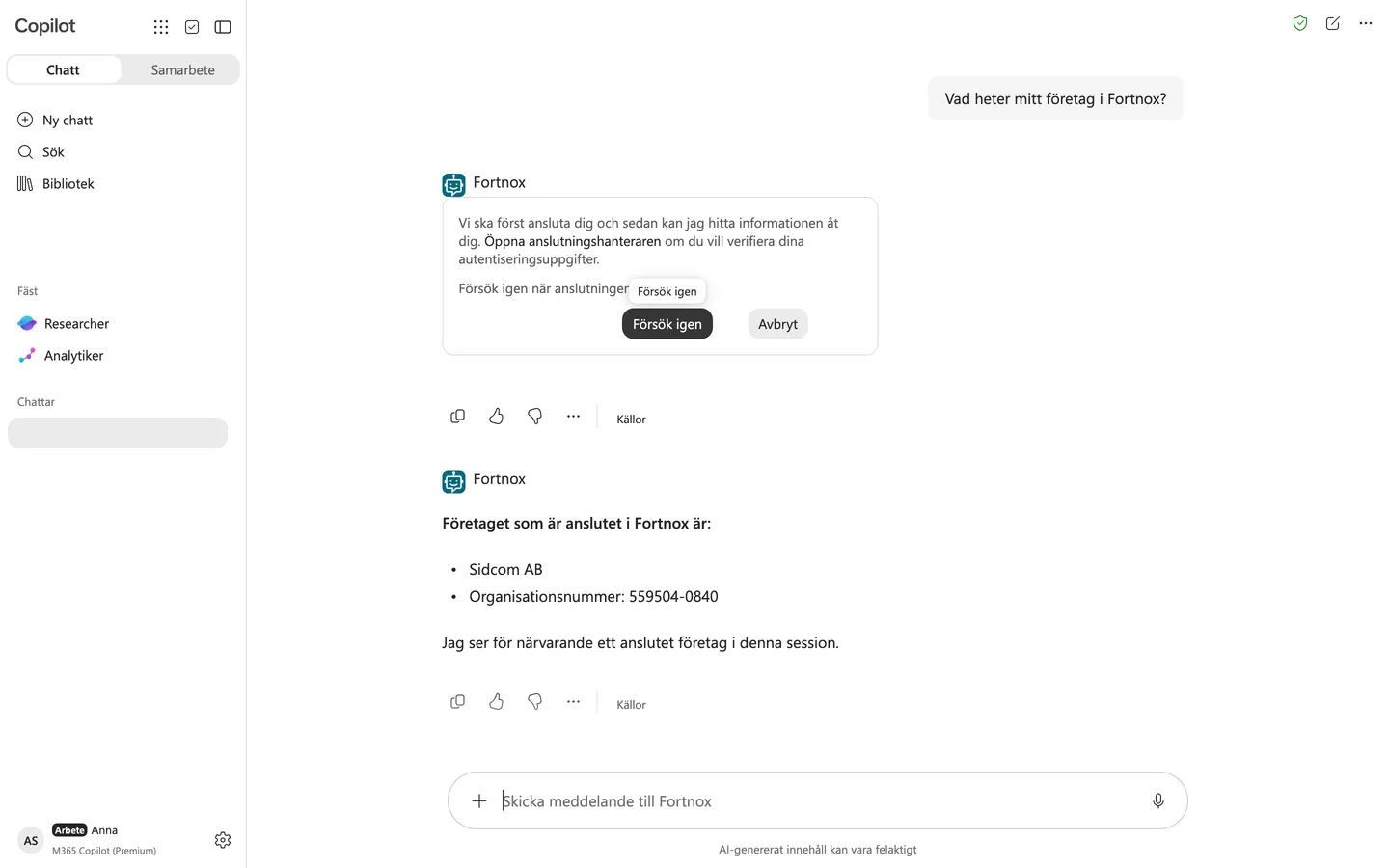
You are connected
Then ask something like Which customer invoices are unpaid? You only need to connect once.
Stuck on this step?
The agent does not show up in Copilot
It is not installed by itself. Click See agent in Microsoft 365 in Copilot Studio, then Lägg till (add). Still missing? Reload the page, or sign out and in again in Teams.
Contact support about this step →Looks different on your screen?
Still stuck? Tell us which step and we will help you through it.
Copilot Studio updates its interface often. Screens last checked 30 Sept 2026.
Common setup errors, solved.
"You need credits to continue. This environment doesn't have credits available right now."
Your Power Platform environment has no credits for the agent. First check that the agent is a standard agent (the Agents list says Standard, not GitHub Copilot). Then use is included for users with a Microsoft 365 Copilot licence. Users without a licence, and agents labelled GitHub Copilot, use credits. IT then assigns credits under Licensing in the Power Platform Admin Center, or creates a pay-as-you-go plan: Licensing → Billing plans → New billing plan, link an Azure subscription and resource group, choose Copilot Studio and link your environment. A new plan can take up to an hour to take effect, and only new chats pick it up.
"Can't create MCP server. Try again."
Usually the name. Brackets and other special characters are rejected, and a name recently used by a removed connector is blocked for a while, so give the server another name. Also check that Authentication is OAuth 2.0 with Dynamic discovery, not None.
"Unable to sign in. Please try again." when creating the connection
The sign in window closed before you finished. Microsoft closes it after a few minutes, so go through the Sidcom sign in, Fortnox and the approval in one go. Click Create again; the second time is quicker because the Sidcom account already exists.
The agent’s name is marked invalid
There is already an agent with that name in the environment. Pick another name.
Fortnox says a license is missing when I approve the connection
The company you're connecting to does not have the connector activated. Activate it for that company and the connection goes through. If it is activated, all licences are in use: everyone who connects needs a free one. How to check for free licences and buy more.
Copilot asks me to connect before the agent answers
That is expected the first time. Click the link to open the connection manager, then Connect next to Fortnox, pick or create the connection and click Submit. Go back to the chat and click try again. Colleagues do the same and sign in with their own Sidcom and Fortnox account.
The agent doesn't show up in Copilot after publishing
It is not installed by itself. Click See agent in Microsoft 365 (or See agent in Teams) in the publish panel, then Add. Still missing? Reload the page, or sign out and in again in Teams. Colleagues reach the agent through Availability options, and to roll it out to the whole organisation IT approves it in the Teams admin center.
"The user … does not have sufficient access rights … Required access right 'DeleteAccess' is missing."
You're trying to delete a custom connector that someone else owns — in Power Platform, everyone can only delete their own connectors. Ask the owner to delete theirs, or have a Power Platform administrator do it. If the old one doesn't have to go, it's enough to give your new connector a unique name.
"No Azure subscriptions available" when I create a billing plan
Pay-as-you-go is billed against an Azure subscription, and there is none in your tenant — or your user can't access it. Create one at portal.azure.com under Subscriptions → Add (e.g. Pay-As-You-Go). Make sure it's in the same tenant as your Microsoft 365 and that you have the Owner or Contributor role on it. This step is normally handled by IT.
The resource group doesn't appear in the billing plan dialog
The fields depend on each other — the resource group list only fills in after you've chosen an Azure subscription. Pick the subscription at the top and the resource groups appear. If the subscription has no resource groups, create one at portal.azure.com → Resource groups → Create. If the subscription doesn't show at all, register the Microsoft.PowerPlatform resource provider on it (Subscription → Resource providers → search → Register) and refresh the page.
My environment doesn't show up in the billing plan ("No environments")
The list filters by region, and the region refers to where the environment is provisioned — not where the company is. The default environment ("[Company] (default)") usually sits in the Europe region, even for Swedish organisations. Switch Region to Europe (or search for your company name) and the environment appears.
A "Permission Required" card appears for every tool
The agent was created as a GitHub Copilot agent, the new kind on the home page. It asks permission the first time each Fortnox tool is used, and uses Copilot Credits. An agent cannot switch kind, so create a new one through Other ways to build → Agent (Standard) as in the guide above, and delete the old one.
Why the standard agent and not the new one with GitHub Copilot?
Today the new kind asks permission for every Fortnox tool and uses Copilot Credits even for users with a Microsoft 365 Copilot licence. The standard agent is included with the licence and answers straight away. Microsoft is investing in the new kind, and when it works as well with connectors we will update the guide.
Still stuck?
The Microsoft prerequisites involve several moving parts and are handled by IT in most organisations — take help from your IT administrator for Azure, the billing plan and permissions, and send along a link to this page. Prefer a simpler setup? Our Claude Fortnox Connector connects in a couple of minutes without Copilot Studio. Otherwise contact us — we reply fast.